
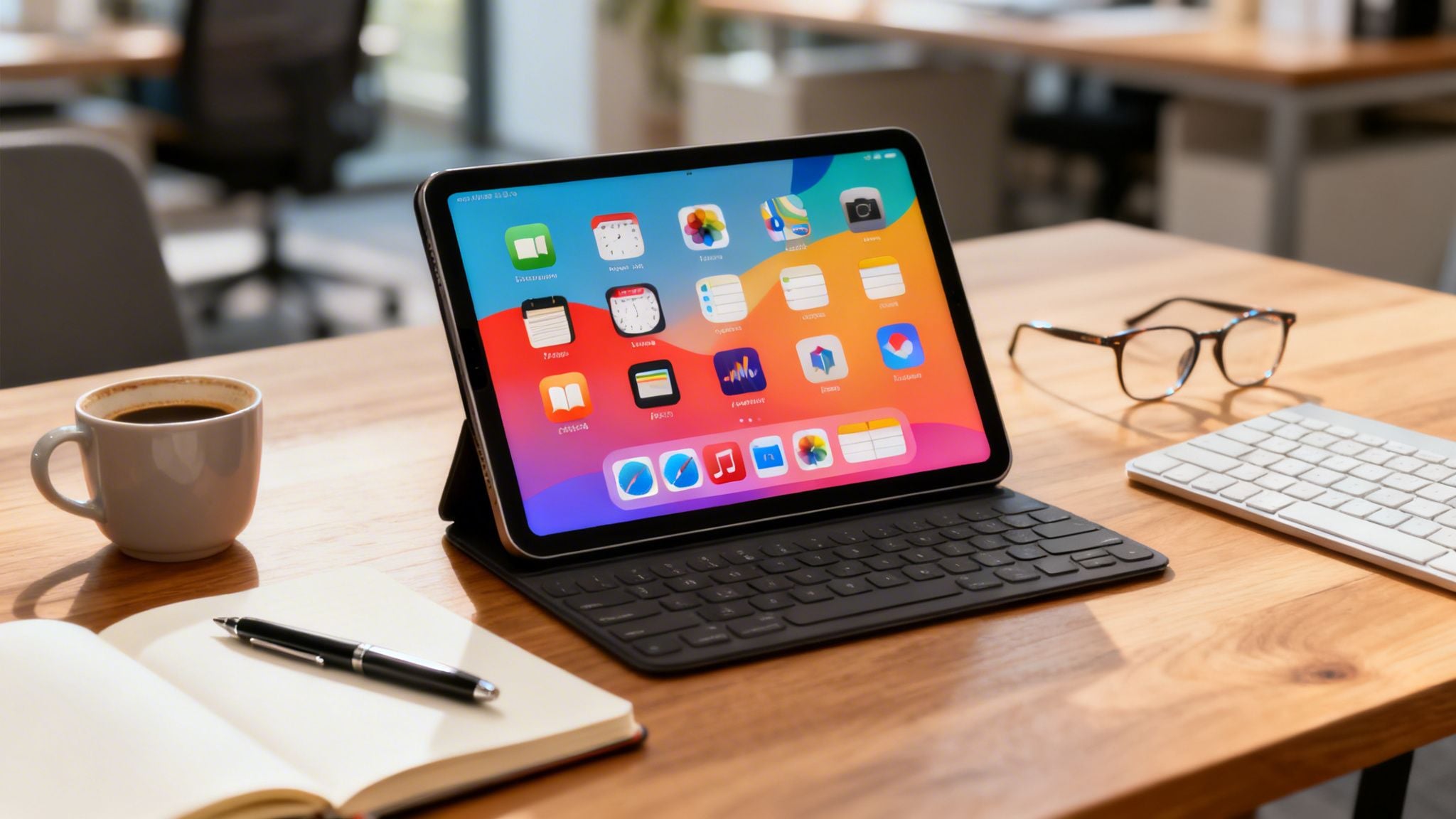
The iPad, with its powerful hardware and versatile form factor, has become a serious contender for replacing the traditional laptop for many tasks. However, its true potential is unlocked only with the right software. Simply downloading popular apps isn’t enough; the key is to build a cohesive system where each application serves a specific purpose without creating friction or redundancy. This guide is designed to help you do just that.
We’ve moved beyond surface-level reviews to provide a detailed analysis of the best iPad apps for productivity available today. Instead of a random collection, you’ll find a curated selection organized by function, from note-taking and task management to deep work and automation. This resource is for professionals, students, and creators who want to build a truly effective workflow on their device.
Inside, you will discover:
- Detailed Breakdowns: For each app, we analyze its core strengths, practical use cases, and honest limitations. We’ll show you how and why an app like Things 3 excels at personal task management, while OmniFocus 4 might be better for complex, multi-layered projects.
- Specific Workflows: We explore how these tools can connect. Learn how to link your notes in Obsidian directly to tasks in Todoist or capture ideas in Drafts and send them to your project hub in Notion.
- Clear Comparisons: We compare alternatives, discuss pricing structures, and provide direct links and screenshots so you can make informed decisions quickly.
Our goal is simple: to help you find the perfect combination of apps that aligns with your specific needs, whether you’re managing a team, studying for exams, or building a creative business. Let’s find the tools that will transform your iPad into a focused, high-output workstation.
1. Notion
Notion is more than just a note-taking app; it’s a complete, all-in-one workspace that consolidates notes, databases, and project management into a single interface. Its true power on the iPad lies in its incredible flexibility, allowing users to build customized systems from scratch. You can create anything from a simple to-do list to a complex content calendar or a personal wiki, all connected and synced across your devices.
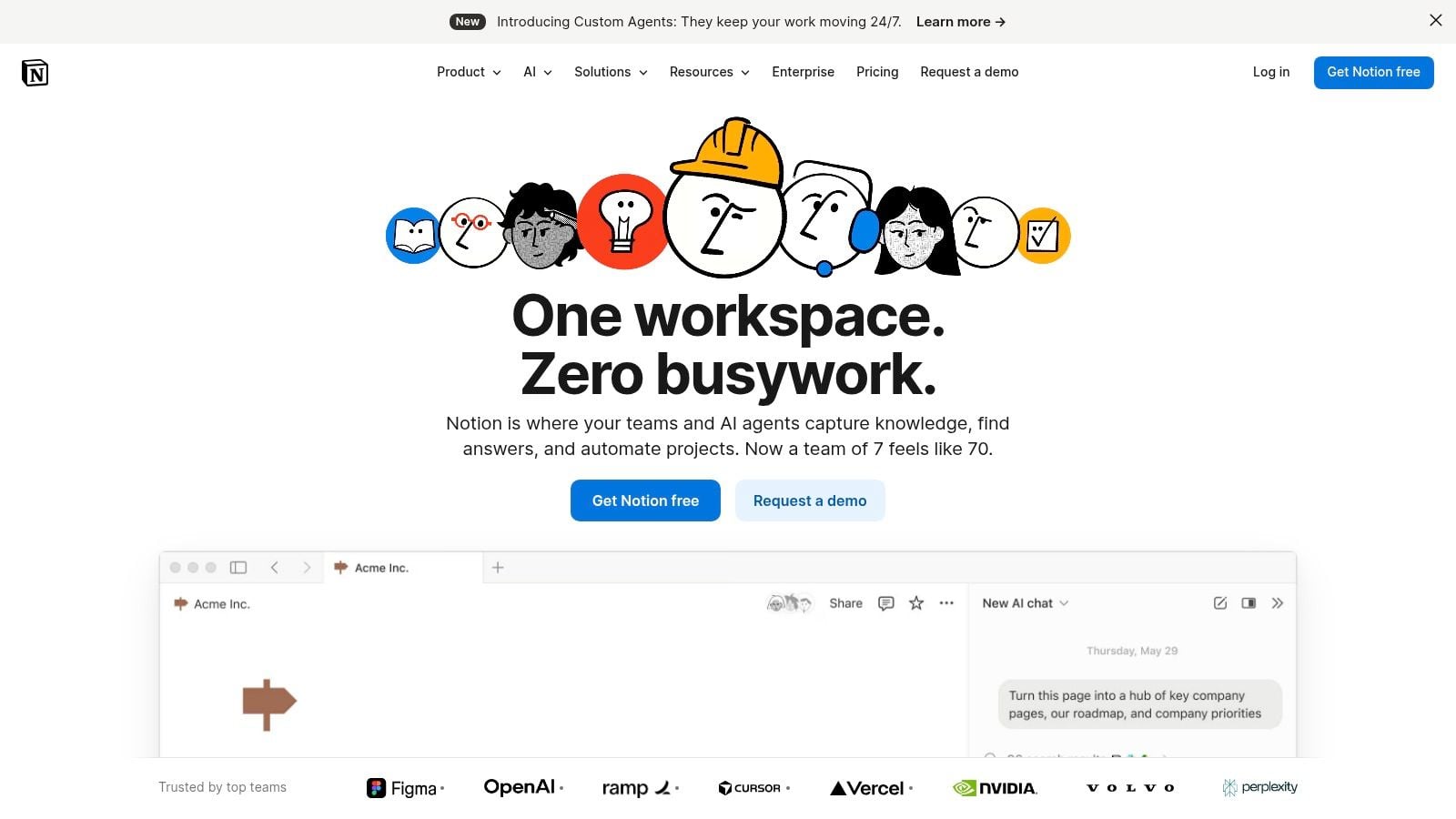
The app’s database feature is a standout, allowing you to create interconnected tables, boards, and galleries to track tasks, manage projects, or organize research. Its block-based editor makes it easy to embed images, links, and even other pages, making it one of the best iPad apps for productivity when organizing complex information. The recent addition of Notion AI provides assistance for summarizing long documents, brainstorming ideas, or improving your writing directly within the page. While the app’s extensive features can feel a bit much for simple tasks, its adaptability is its greatest asset.
Key Details
- Best For: Individuals and teams who need a single, customizable hub for knowledge management, task tracking, and lightweight project planning.
- Pricing: Free plan is very generous for personal use. Paid plans start at $8/user/month (billed annually) for more collaboration features and larger file uploads.
- Standout Feature: The database system, which allows you to view the same information in multiple ways (table, list, Kanban board, calendar).
- Pro Tip: Don’t start from a blank slate. Explore the vast community library to find the best Notion templates for productivity and adapt them to your specific needs.
- Website: https://www.notion.com
2. Goodnotes 6
Goodnotes 6 transforms the iPad into a digital paper notebook, offering a best-in-class handwriting experience that feels remarkably fluid and natural with an Apple Pencil. It excels at tasks where freeform input is key, such as annotating PDFs, sketching mind maps, or keeping a handwritten journal. Its strength lies in combining the tactile feel of pen and paper with the organizational power of a digital app, making it one of the best iPad apps for productivity for visual thinkers and students.
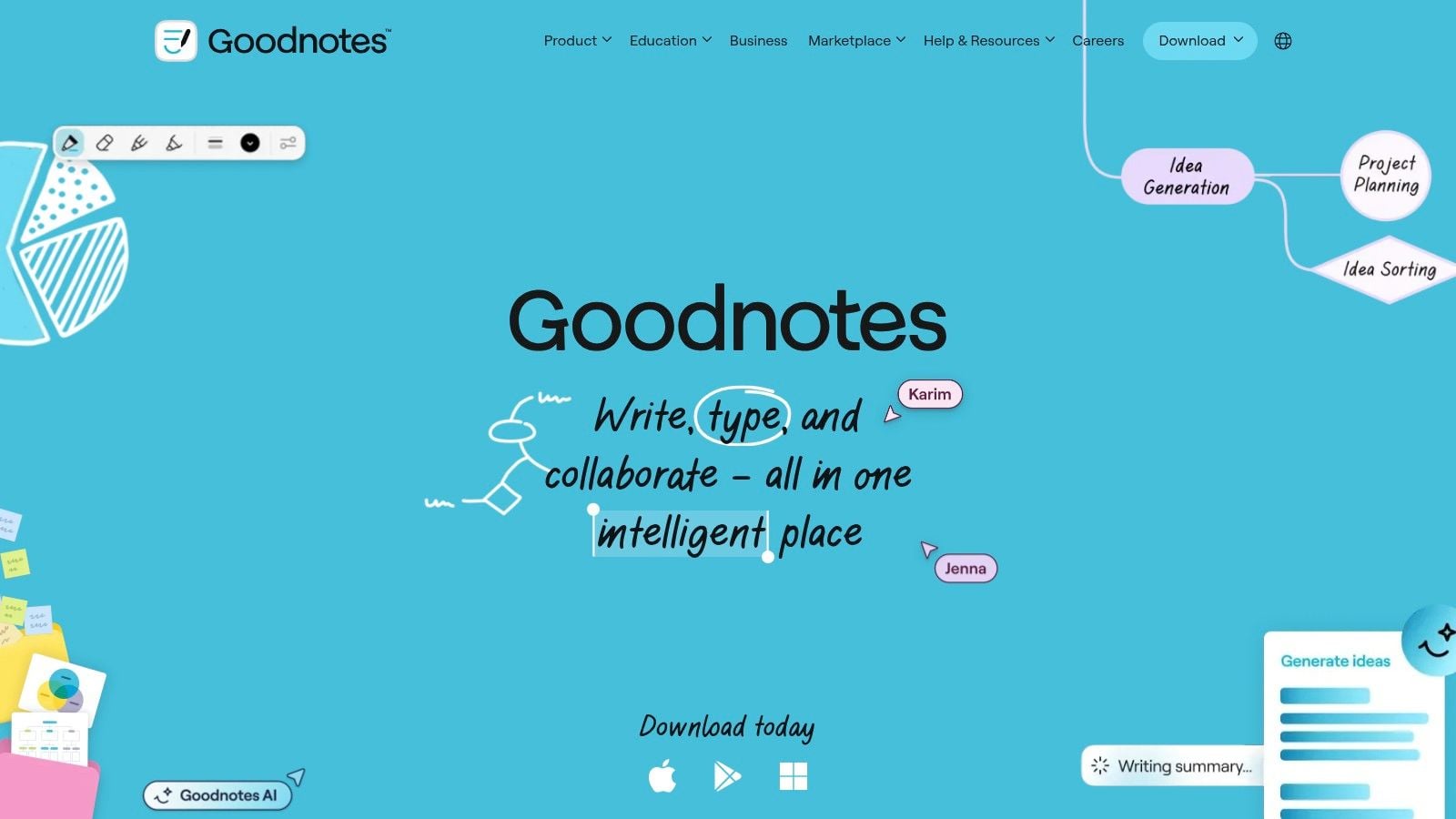
The app’s robust file management allows you to organize notes into nested folders and custom notebooks, creating a well-structured digital library. A standout addition in version 6 is the AI-powered features, which can fix typos in your handwriting, summarize notes, and even help solve math problems. This makes it an incredibly powerful tool for studying and meeting preparation. For those marking up long documents, learning how to take notes for a book with Goodnotes’ PDF import feature can completely change your workflow. While the full suite of AI tools and unlimited notebooks requires a subscription, its core functionality remains top-tier.
Key Details
- Best For: Students, educators, and anyone who prefers taking handwritten notes, annotating documents, or using digital planners.
- Pricing: Free version is limited to 3 notebooks. A one-time purchase of $29.99 or a yearly subscription of $9.99 unlocks all features, including AI assistance.
- Standout Feature: The AI handwriting tools that can check for spelling errors in your own handwriting and convert messy notes into clean text.
- Pro Tip: Use the Elements Tool to save frequently used diagrams, stickers, or formulas. You can drag and drop these saved “Elements” into any notebook to save time and maintain consistency.
- Website: https://www.goodnotes.com
3. Microsoft OneNote
Microsoft OneNote has long been a heavyweight in the digital note-taking space, and its iPad app is a testament to its staying power. It acts as a digital three-ring binder, letting you organize information into notebooks, sections, and pages. Its free-form, infinite canvas is a key differentiator, allowing you to type, draw, or paste content anywhere on a page, making it feel less restrictive than traditional word processors. The app’s tight integration with the Apple Pencil provides one of the best inking experiences available, perfect for handwritten notes, sketches, and annotations.
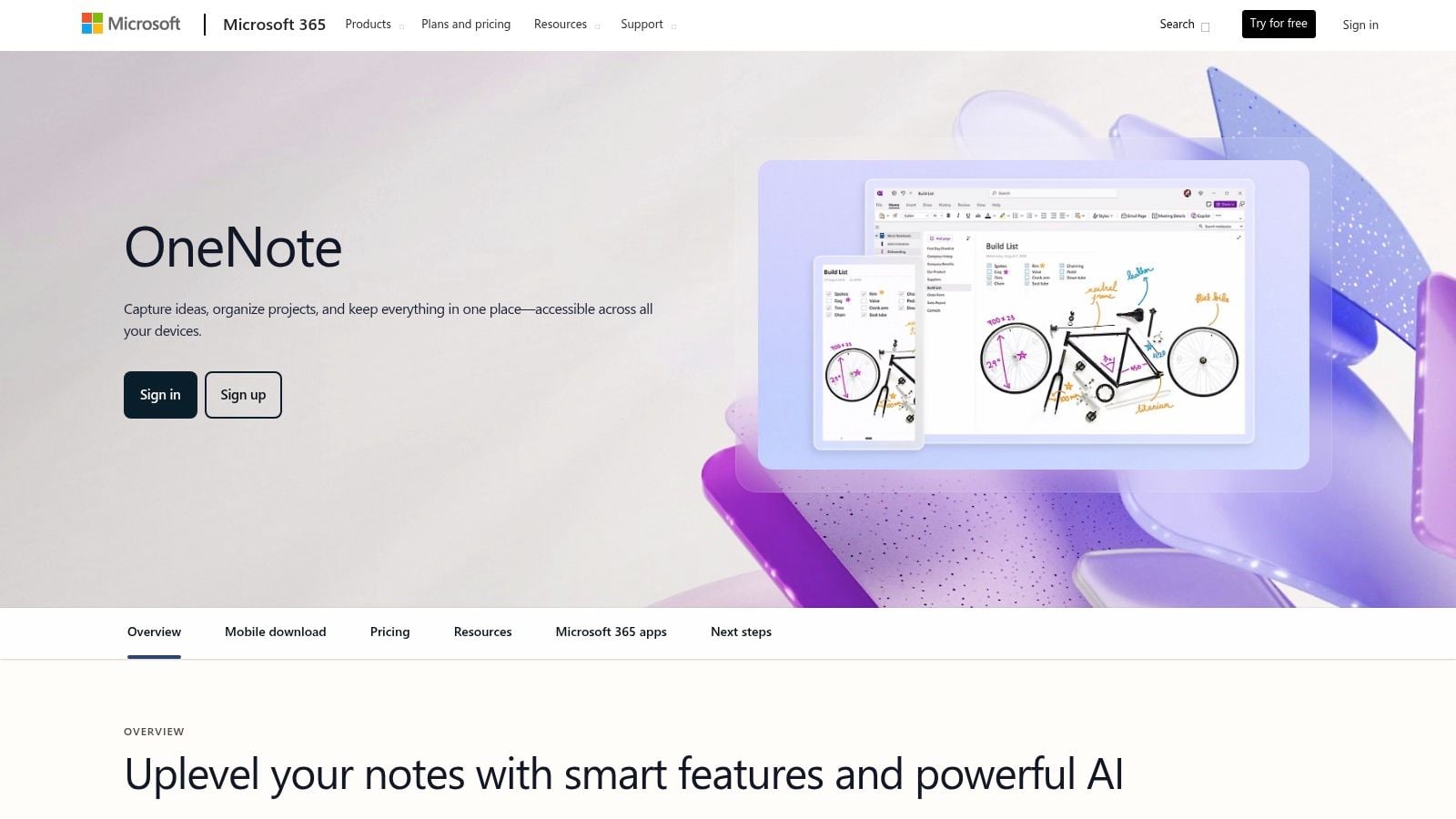
For students and professionals embedded in the Microsoft ecosystem, OneNote is one of the best iPad apps for productivity due to its seamless cross-platform syncing and powerful features. You can embed files, record audio notes that sync with your typed text, and use its robust search function (including OCR for text in images and handwriting). While its organizational structure is more rigid than apps like Notion, this can be a strength for those who prefer a clear, hierarchical system for long-term projects or class notes. The core application is completely free, with advanced features like Copilot AI assistance tied to a Microsoft 365 subscription.
Key Details
- Best For: Students, educators, and professionals who need a powerful, free, and structured notebook for capturing both typed and handwritten information, especially those using other Microsoft Office apps.
- Pricing: Free for all core features and generous storage. A Microsoft 365 subscription is required for advanced features like Copilot, extra storage, and deeper integrations.
- Standout Feature: The combination of an infinite canvas with a structured notebook-section-page hierarchy, offering both freedom and organization.
- Pro Tip: Use the “Send to OneNote” share extension on your iPad. It lets you quickly clip web pages, images, or documents from almost any app directly into a specific notebook, making research capture incredibly fast.
- Website: https://www.microsoft.com/onenote
4. Things 3
Things 3 is the gold standard for personal task management, celebrated for its elegant design, speed, and opinionated approach to productivity. It’s built exclusively for the Apple ecosystem, and its iPad app is a masterclass in clean, focused design. Rather than overwhelming you with features, Things 3 provides a clear, structured system based on the Getting Things Done (GTD) methodology, helping you capture tasks effortlessly and organize them into projects and areas.
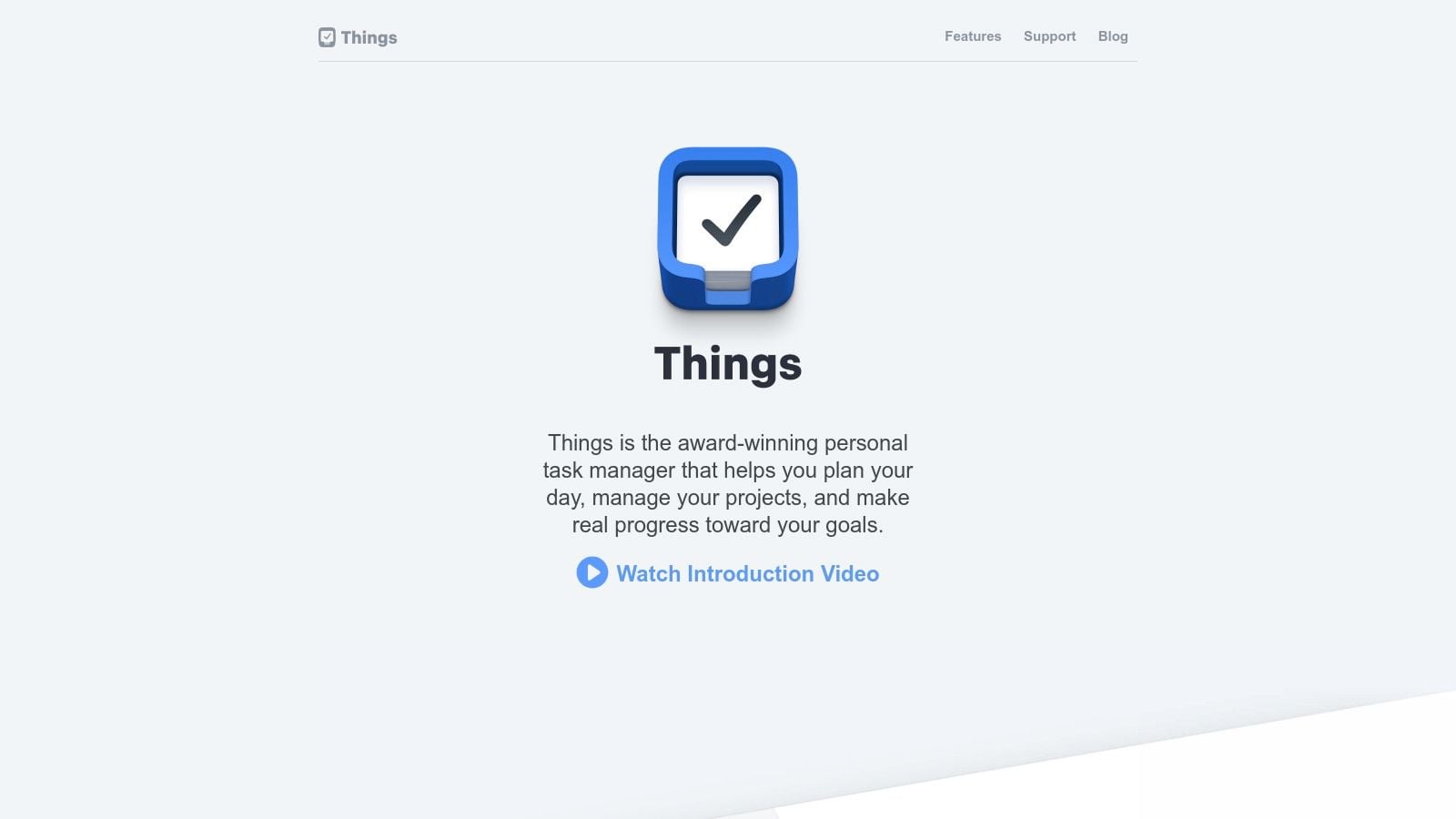
The app’s core strength lies in its simplicity and delightful user experience. The “Today” view gives you a clear focus for the day, while the “Upcoming” view helps you plan ahead. Its natural language input for dates and powerful keyboard shortcuts make it one of the best iPad apps for productivity for those who value speed and efficiency. By providing a clear framework, Things 3 helps you manage your focus, reduce overwhelm, and find practical ways to stop procrastinating on your important tasks. While its Apple-only nature is a limitation for cross-platform users, its flawless sync and native performance are a huge benefit for those committed to the ecosystem.
Key Details
- Best For: Individuals deeply invested in the Apple ecosystem who want a beautiful, fast, and structured to-do list for personal and light professional use.
- Pricing: One-time purchases per platform. The iPad app is $19.99, with separate purchases required for Mac and iPhone.
- Standout Feature: The fluid, award-winning user interface combined with a structured workflow that guides you toward effective task management without being restrictive.
- Pro Tip: Use the “Quick Find” feature (Cmd + F) to instantly jump to any project, area, or tag. Also, drag and drop emails from the Mail app directly into Things 3 to create tasks with a link back to the original message.
- Website: https://culturedcode.com/things
5. Todoist
Todoist has long been a gold standard for task management, and its iPad app perfectly balances simplicity with powerful organizational features. It excels at capturing tasks quickly thanks to its smart natural language input; you can type “Schedule team meeting every Friday at 10 AM #Work” and the app will automatically set a recurring task with the correct date and project. This makes it an incredibly efficient tool for offloading thoughts and responsibilities without interrupting your workflow.
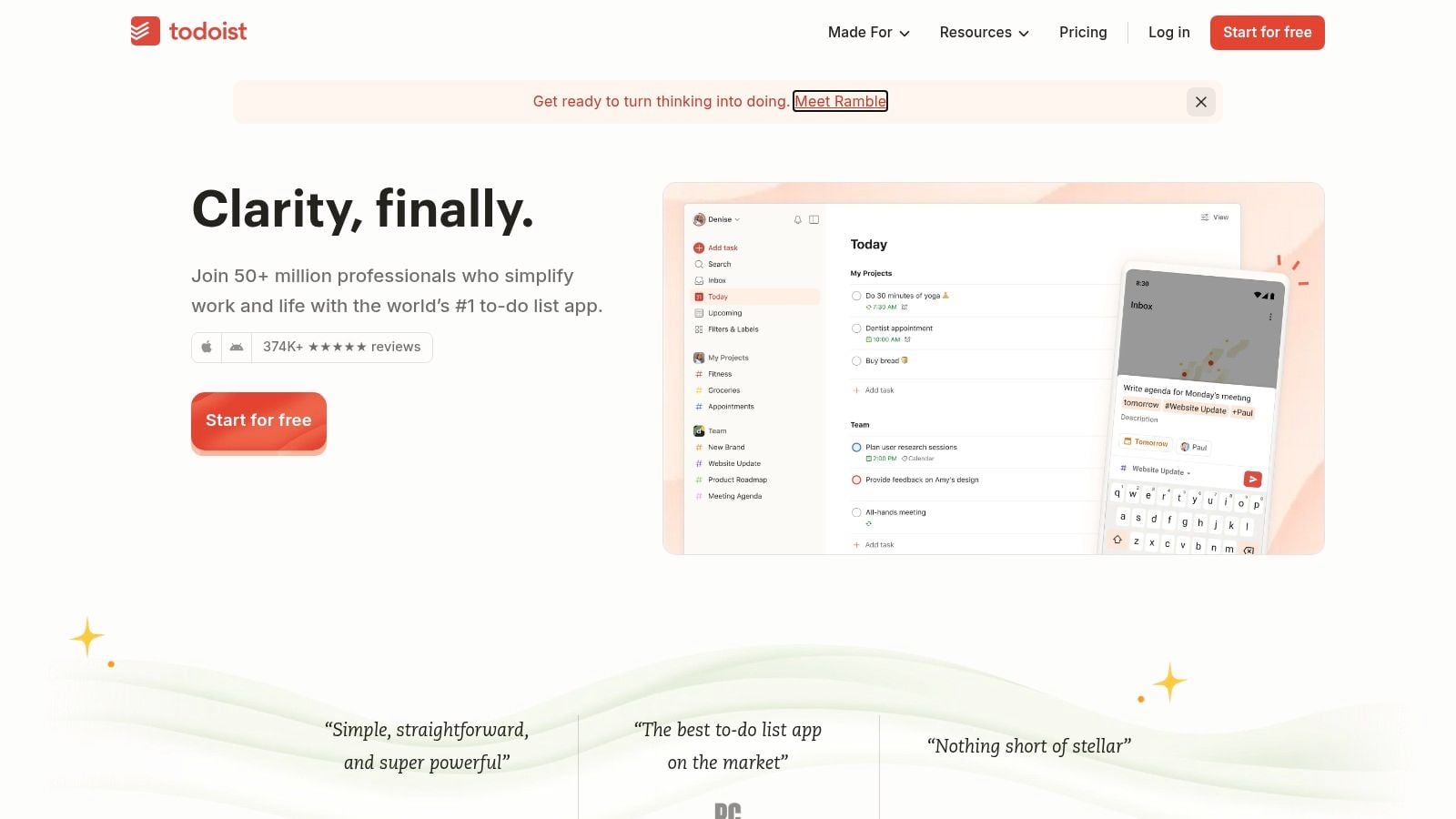
The app’s flexibility is one of its core strengths. You can organize tasks in simple lists, view them on a calendar, or manage projects visually with Kanban-style boards. Its robust system of filters and labels allows you to create custom views that slice through your tasks, showing you exactly what you need to see, when you need to see it. Whether you’re managing personal errands or coordinating a small team project, Todoist’s clean interface and cross-platform sync make it one of the best iPad apps for productivity and staying organized.
Key Details
- Best For: Individuals and small teams looking for a fast, reliable, and flexible task manager that works seamlessly across all devices.
- Pricing: Free plan is suitable for basic personal task management. Paid plans start at $4/user/month (billed annually) for filters, reminders, and more project features.
- Standout Feature: The “Quick Add” function with natural language processing is exceptionally good at parsing dates, times, priorities, and projects from a single line of text.
- Pro Tip: Combine filters and labels to create powerful custom views. For example, a filter like
today & #work & p1will instantly show you all of your high-priority work tasks due today. - Website: https://todoist.com

6. OmniFocus 4
OmniFocus 4 is a professional-grade task manager built from the ground up around David Allen’s “Getting Things Done” (GTD) methodology. Unlike simpler to-do list apps, OmniFocus provides a powerful, structured environment for managing complex projects and personal productivity systems. Its true strength on the iPad is its deep customization, allowing users to build a task management setup that perfectly mirrors their brain and workflow. It is designed for those who need to manage a high volume of inputs and require a system to process them effectively.
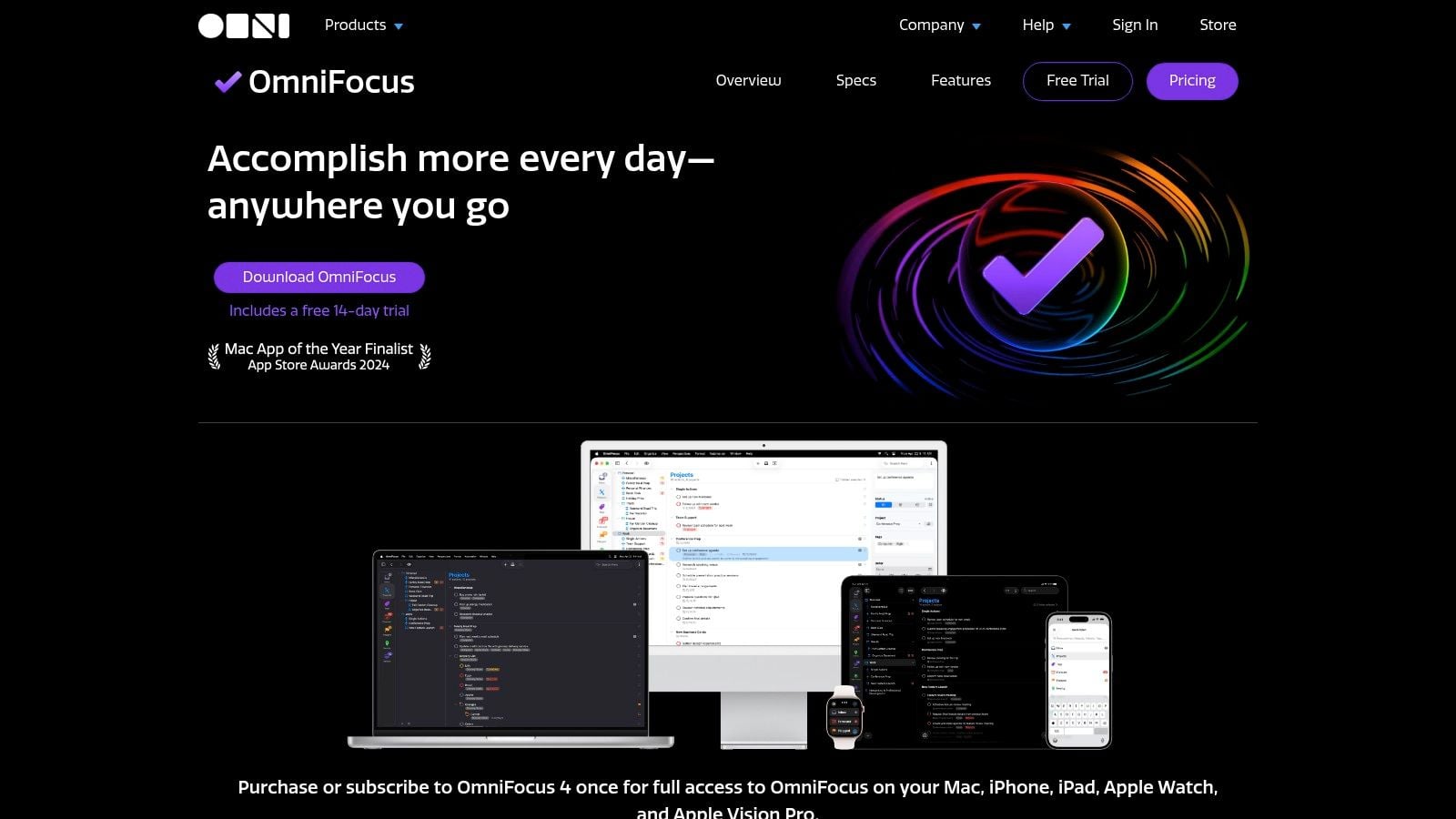
The app’s Forecast view combines calendar events and due tasks, giving you a clear picture of your day and week ahead. Custom Perspectives are a standout, letting you create unique views that filter tasks by tag, project, or status, which makes it one of the best iPad apps for productivity for users who feel overwhelmed by long, generic task lists. With extensive support for Shortcuts and automation, you can create workflows to quickly capture ideas or set up recurring project templates. While its granular approach has a steeper learning curve and a higher price, its power for serious task management is unmatched for dedicated users.
Key Details
- Best For: Individuals deeply committed to the GTD methodology or those who need a powerful, highly customizable system to manage complex personal and professional projects.
- Pricing: A one-time purchase of $74.99 for a Universal license (Mac, iPhone, iPad, Watch) or a subscription at $9.99/month. An optional OmniFocus for the Web add-on is also available.
- Standout Feature: Custom Perspectives, which allow you to create saved, focused views of your tasks based on any combination of criteria like tags, dates, or project status.
- Pro Tip: Fully commit to the initial setup process. Take the time to define your contexts (tags like
@work,@home,@errands) and establish a consistent weekly review habit directly within the app’s dedicated Review perspective. - Website: https://www.omnigroup.com/omnifocus
7. Fantastical (Flexibits Premium)
Fantastical transforms the native calendar experience into a powerful productivity hub. Its most celebrated feature is the natural language parser, which lets you type event details in plain English, like “Lunch with Sarah next Tuesday at 1pm at The Corner Cafe /gcal,” and the app automatically creates the event with the correct date, time, location, and even assigns it to the specified calendar (in this case, Google Calendar). This makes adding events on the go incredibly fast and intuitive.
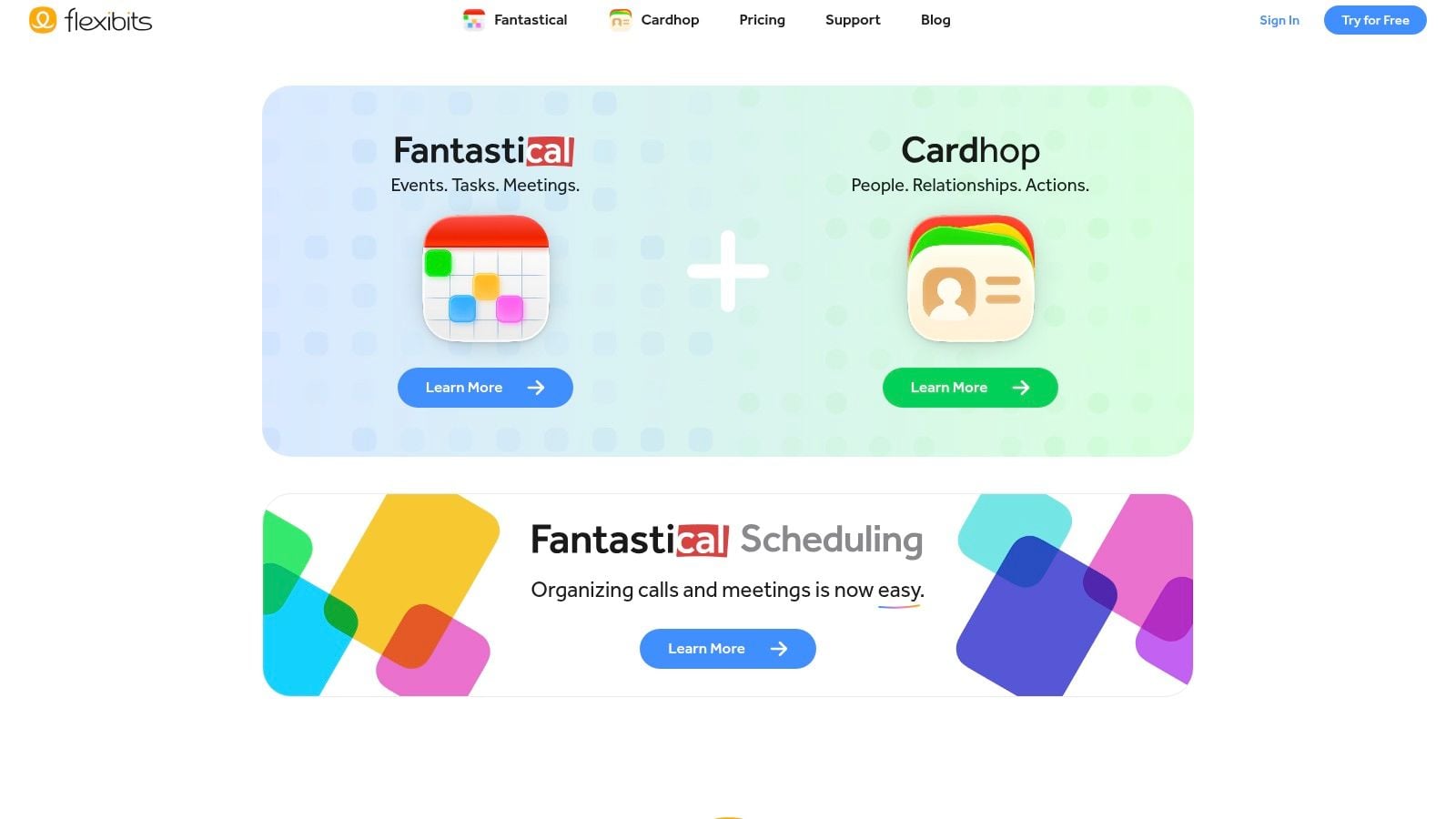
Beyond event creation, Fantastical integrates tasks from Apple Reminders, Google Tasks, and Todoist, placing your to-dos alongside your appointments for a complete view of your day. The premium subscription unlocks advanced features like Scheduling, which allows you to create booking links and proposals to eliminate the back-and-forth of coordinating meetings. Its polished iPad interface, extensive widget support, and deep integration with the Apple ecosystem make it one of the best iPad apps for productivity for anyone serious about managing their time. While the free version is limited, the premium suite is a worthy investment for professionals.
Key Details
- Best For: Professionals and power users who need fast event creation and integrated scheduling tools to manage a busy calendar.
- Pricing: A limited free version is available. The full Flexibits Premium subscription starts at around $4.75/month (billed annually), with a 14-day free trial.
- Standout Feature: The natural language parsing for creating events and tasks is unmatched in speed and accuracy.
- Pro Tip: Use Fantastical’s calendar sets to quickly toggle between different views, like “Work” and “Personal.” This helps you focus on what’s relevant without being overwhelmed by multiple calendars.
- Website: https://flexibits.com
8. Spark Mail
Spark Mail reimagines the email experience for the modern, mobile-first user, turning your inbox from a source of stress into a manageable task list. It achieves this with its “Smart Inbox,” which automatically sorts incoming mail into categories like Personal, Notifications, and Newsletters, letting you focus on what truly matters first. The app is designed for rapid triage, making it one of the best iPad apps for productivity when you need to clear your inbox quickly between meetings or on the go.
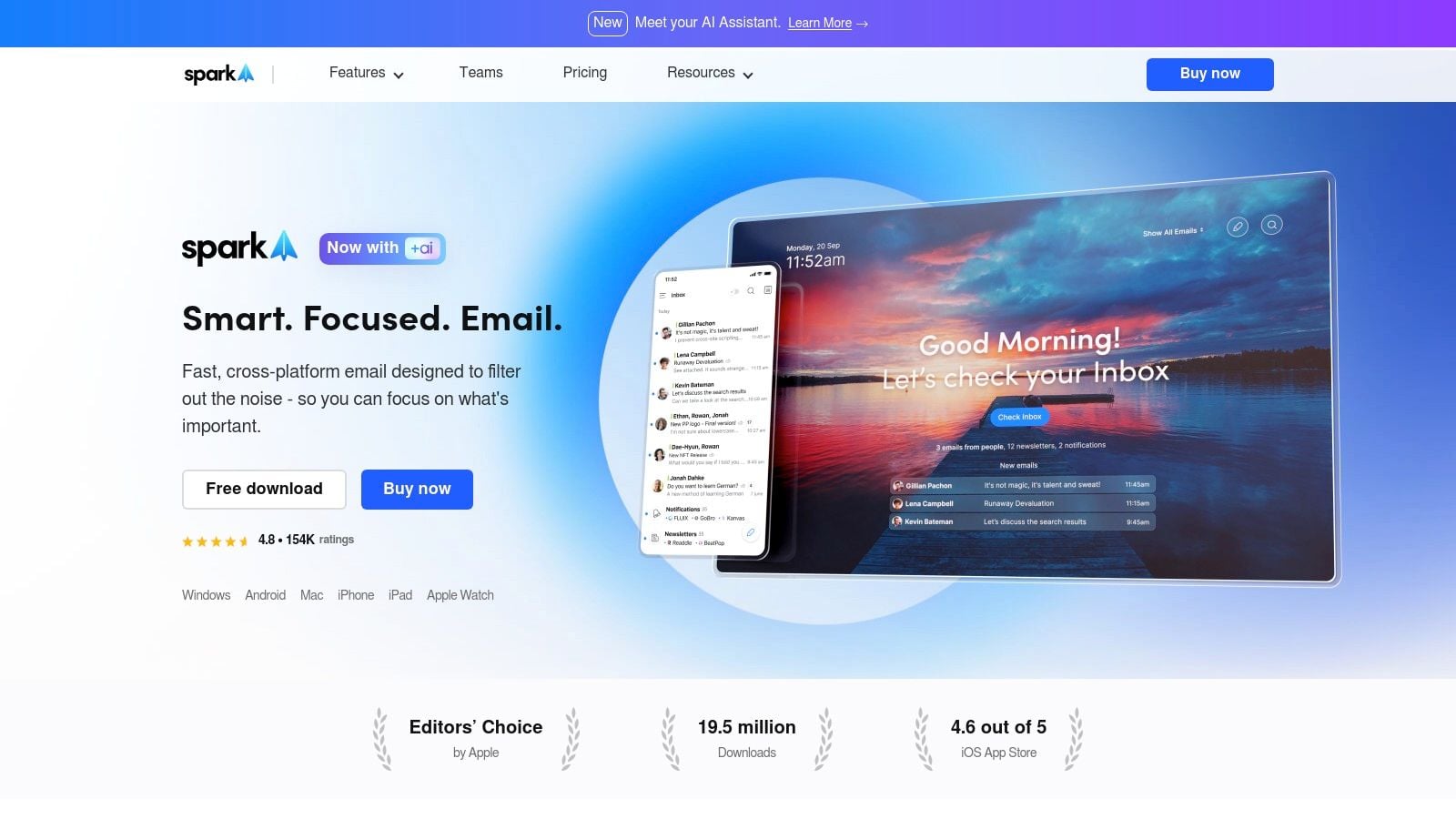
Beyond its intelligent sorting, Spark is packed with features that help you regain control. You can snooze emails to have them reappear at a more convenient time, set follow-up reminders for important messages that haven’t received a reply, and schedule emails to be sent later. The app also includes collaborative features for teams, allowing you to discuss emails privately without messy forwards and CCs. Its recently added AI assistant can help draft replies or summarize long threads, further speeding up your workflow. The polished interface and thoughtful keyboard shortcuts make it a joy to use on the iPad.
Key Details
- Best For: Professionals and individuals who want to process email faster and treat their inbox like a to-do list.
- Pricing: Free for individual users with basic features. Premium plans for individuals and teams start at $4.99/user/month (billed annually) for advanced features like AI, Gatekeeper, and unlimited templates.
- Standout Feature: The “Smart Inbox” combined with snooze and follow-up reminders, which fundamentally changes how you interact with email.
- Pro Tip: Use the “Gatekeeper” feature (Premium) to screen new senders. It allows you to approve or block them before they ever clutter your main inbox, keeping it pristine.
- Website: https://sparkmailapp.com
9. PDF Expert (Readdle)
For anyone who deals with PDFs regularly, PDF Expert is an essential tool that transforms the iPad into a powerful document-handling machine. Far beyond a simple reader, it provides a complete suite of tools for annotating, editing, and managing PDFs with an interface that feels perfectly at home on a touch-first device. It makes marking up research papers, filling out forms, or signing contracts a fast and fluid experience, eliminating the need to print documents.
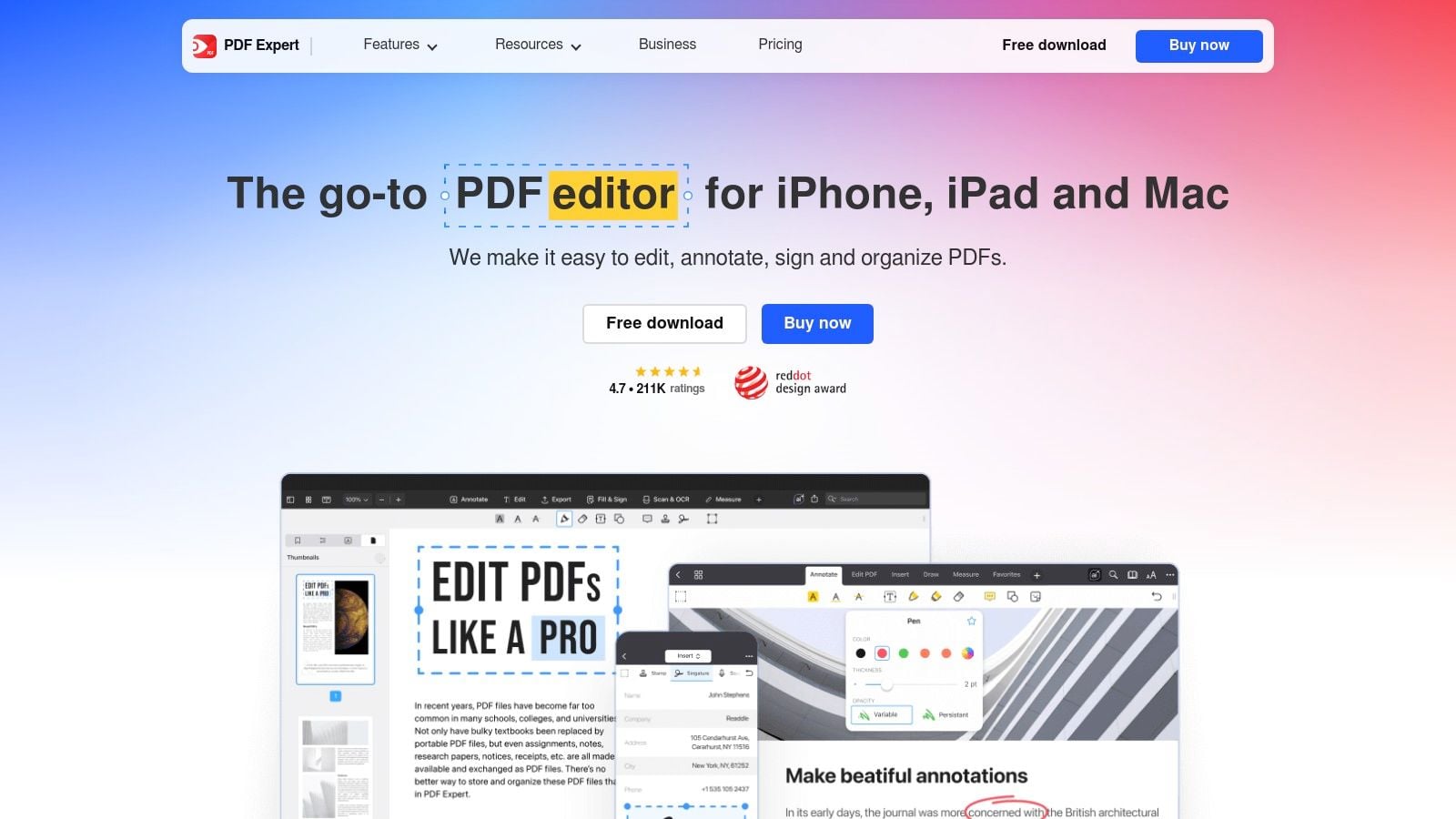
The app’s performance is a major strength; it opens and renders large, complex files almost instantly. Its editing capabilities allow you to directly change text, replace images, and add links within a PDF. Recent additions like the AI-powered ‘Copilot’ assist with summarizing dense documents and extracting key points, making it one of the best iPad apps for productivity when dealing with information-heavy files. While the free version is great for reading and basic annotation, the subscription unlocks its full potential as a complete paperless workflow solution.
Key Details
- Best For: Students, lawyers, real estate agents, and professionals who need a reliable and fast solution for reading, annotating, signing, and editing PDFs on the go.
- Pricing: Free for reading and basic annotations. The PRO subscription starts at $79.99/year, unlocking all features across iPhone, iPad, and Mac.
- Standout Feature: The combination of a fluid, responsive interface with a robust toolset for direct PDF editing, form filling, and OCR makes it a top-tier alternative to Adobe Acrobat.
- Pro Tip: Use the “Split View” on iPad to have PDF Expert open alongside a note-taking app like Goodnotes or Apple Notes. This allows you to drag and drop text or screenshots from a PDF directly into your notes while studying or researching.
- Website: https://pdfexpert.com
10. Obsidian
Obsidian is a powerful, markdown-based knowledge base that functions like a second brain. Unlike cloud-first apps, it operates on a local-first principle, meaning your notes are plain text files stored directly on your iPad or in a cloud service you control, giving you full ownership of your data. This makes it a top-tier choice for researchers, writers, and anyone building a long-term personal knowledge system.
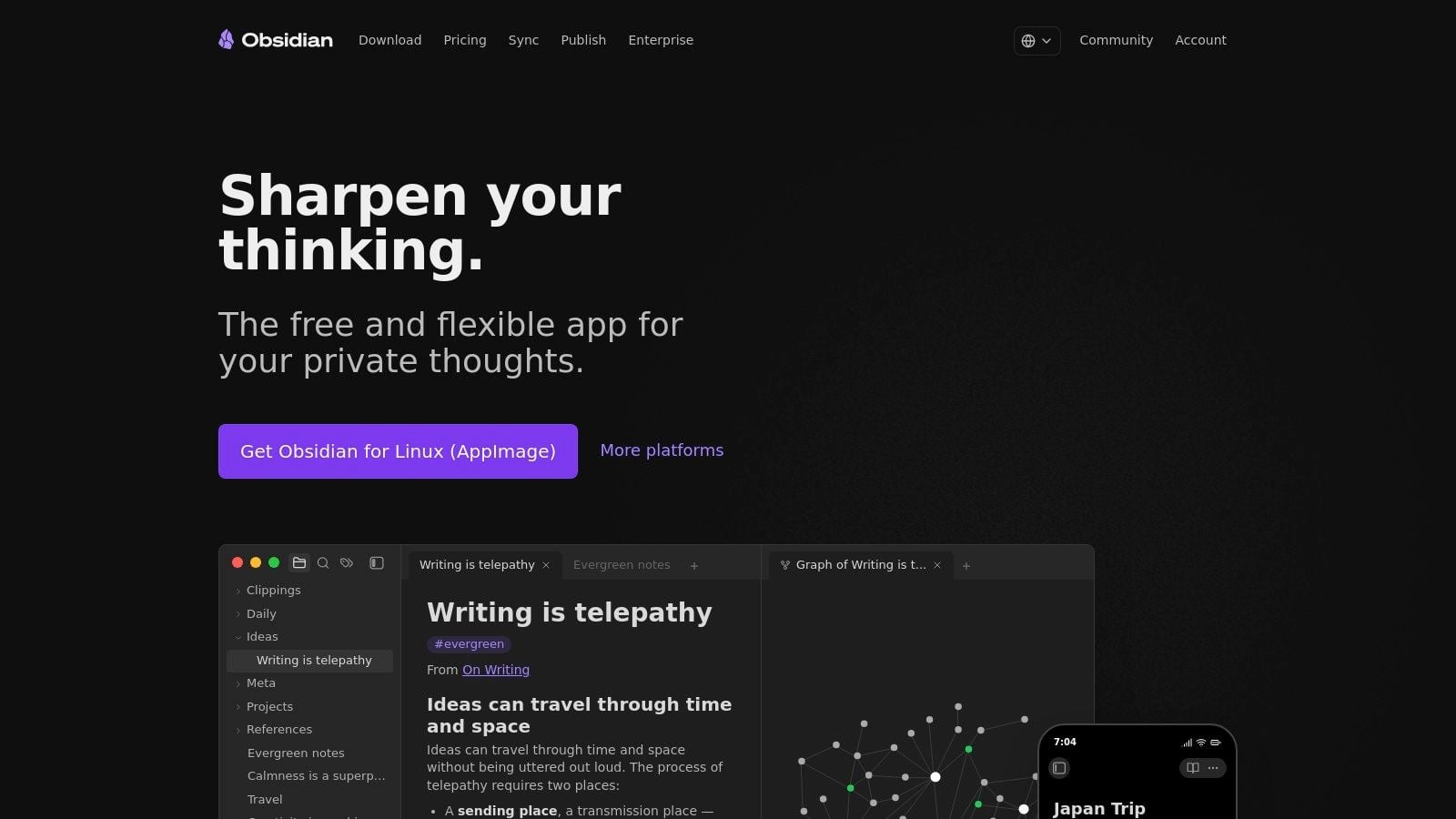
Its core strength lies in its use of bidirectional links (backlinks), which allow you to connect notes and ideas organically. The Graph View visualizes these connections, revealing patterns and relationships in your thoughts that you might otherwise miss. Because of its local-first approach and extensive customizability through community plugins and themes, Obsidian is one of the best iPad apps for productivity for those who value data ownership and a bespoke workflow. While its setup can feel complex for newcomers, its power for networked thought is unmatched.
Key Details
- Best For: Academics, researchers, writers, and thinkers building a durable, interconnected personal knowledge management (PKM) system.
- Pricing: The core app is free for personal use. Optional services include Obsidian Sync ($8/month, billed annually) for seamless syncing and Obsidian Publish ($16/month per site, billed annually) to turn notes into a public website.
- Standout Feature: The Graph View and backlinks, which visualize the network of connections between your notes to foster new insights.
- Pro Tip: Start simple. Focus on daily notes and linking ideas as they come. Explore community plugins gradually to add features like Kanban boards or calendars only when you identify a specific need.
- Website: https://obsidian.md
11. Timery (for Toggl Track)
For anyone who bills by the hour or simply wants to understand where their time goes, precise time tracking is essential. Timery is not a standalone service but a powerful, elegant client for the popular Toggl Track platform. It makes the process of starting, stopping, and managing timers on the iPad incredibly fast and frictionless, solving one of the biggest hurdles to consistent time tracking: remembering to do it. Its design is clean, lightweight, and built for speed.
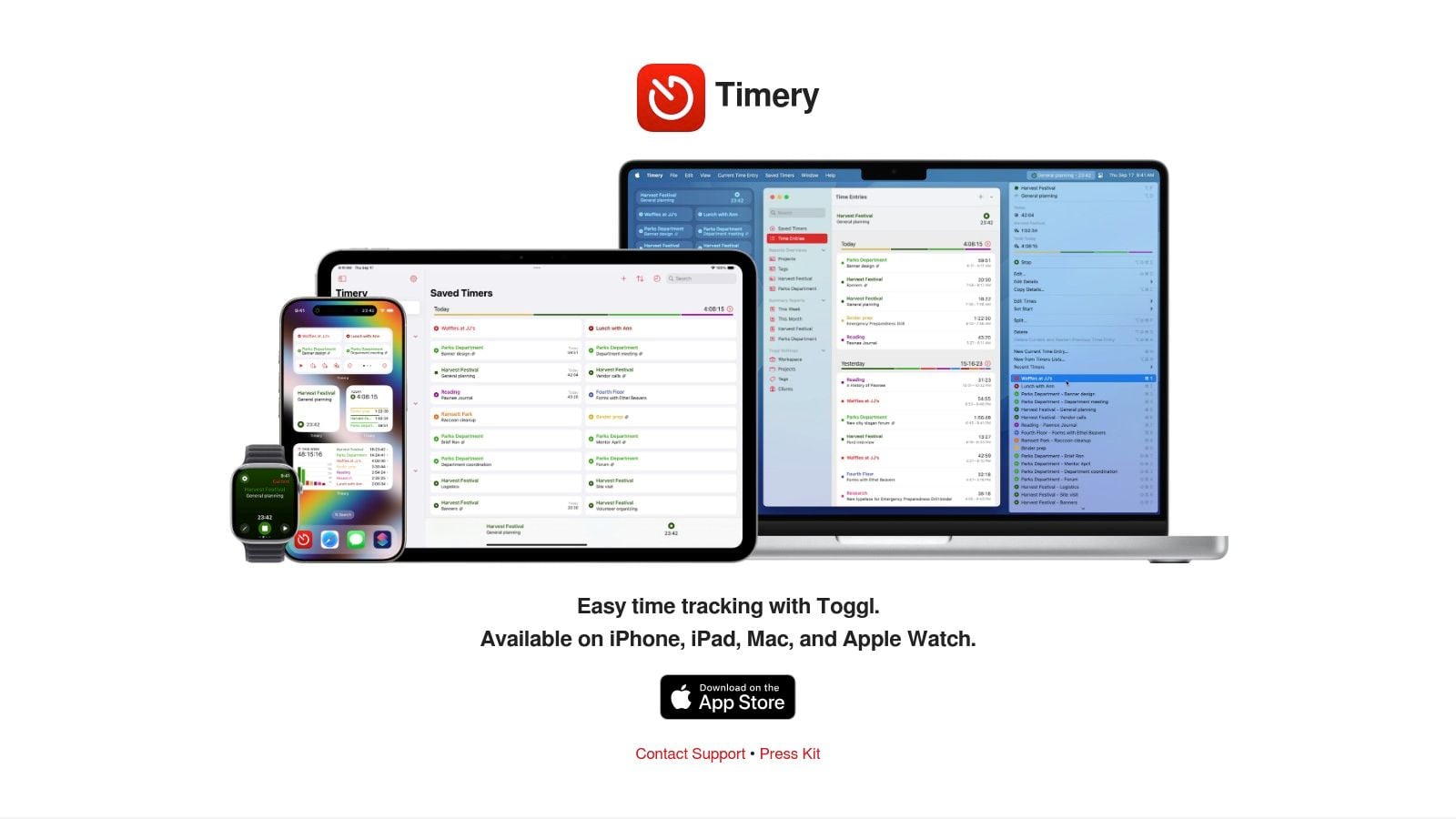
What makes Timery one of the best iPad apps for productivity is its deep integration with the Apple ecosystem. Its Shortcuts support is outstanding, allowing you to create automations to start specific timers based on your location, time of day, or when you open a certain app. The home screen widgets are also a major plus, letting you see your running timer and start new ones without even opening the app. While advanced reporting requires a paid Toggl account, Timery itself perfects the core experience of capturing your time accurately and without effort.
Key Details
- Best For: Freelancers, consultants, and anyone who needs to track billable hours or monitor focus time with minimal friction.
- Pricing: The app is free to download and use with a Toggl Track account (which has a generous free tier). A one-time purchase or subscription unlocks widgets, saved timers, and advanced features.
- Standout Feature: The unparalleled Shortcuts integration, which enables powerful, custom automations for starting and stopping timers.
- Pro Tip: Create a few “Saved Timers” for your most common tasks. Then, build a Siri Shortcut like, “Hey Siri, start writing,” to instantly begin tracking that specific activity without touching your screen.
- Website: https://timeryapp.com

12. Drafts
Drafts operates on a simple yet powerful principle: text comes first. It’s the ultimate starting point for any thought, note, or piece of writing on your iPad, offering an incredibly fast and frictionless capture experience. The app opens directly to a blank page, ready for you to type, dictate, or scribble with the Apple Pencil. Its purpose isn’t to be a final destination for your notes, but rather a temporary inbox for your mind.
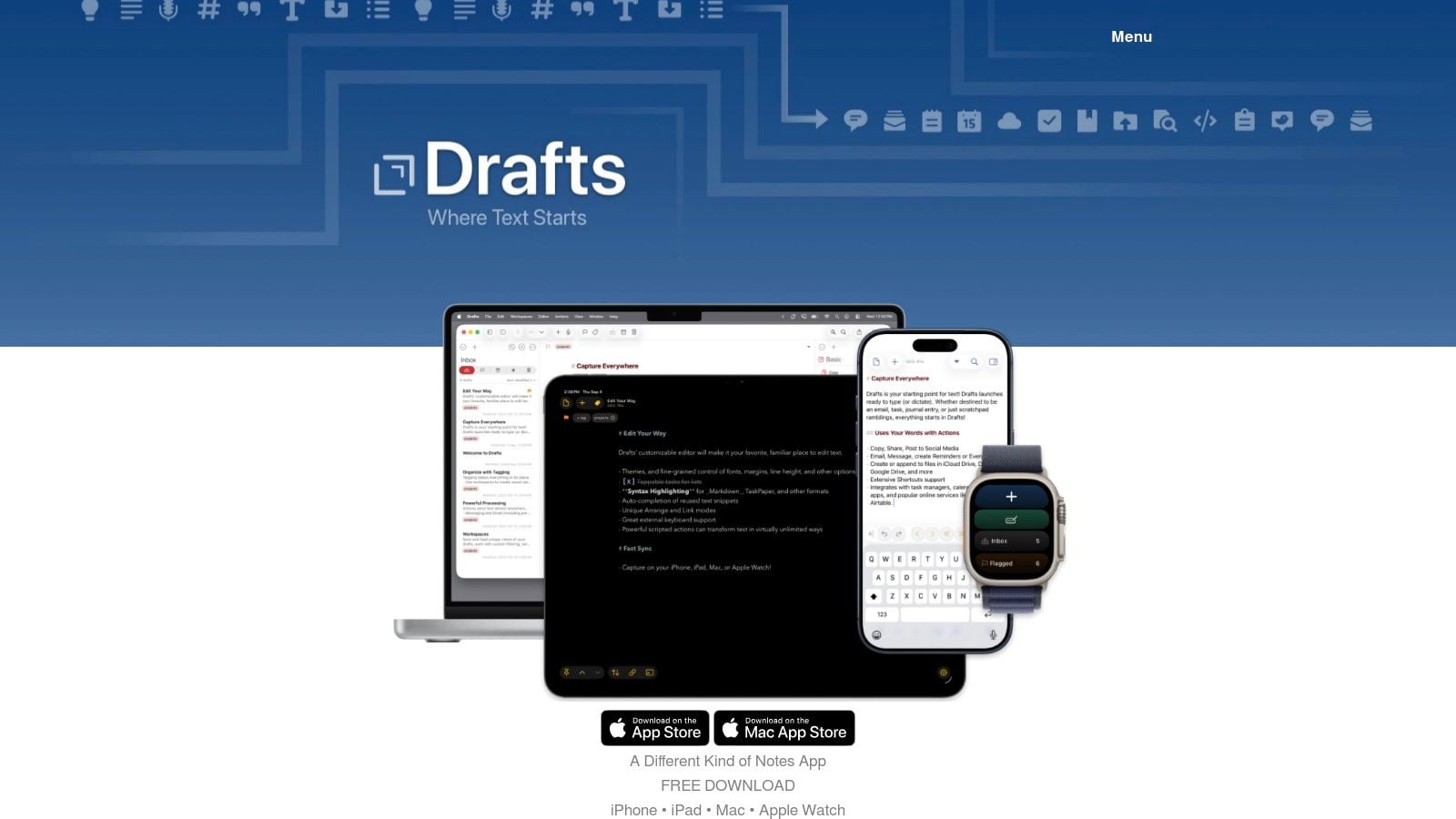
The real magic happens after you capture the text. Drafts’ powerful Actions system allows you to send your text almost anywhere with a single tap. You can create a calendar event, send an email, save a file to Dropbox, add a task to Things, or append a note to a specific page in Notion. This makes it one of the best iPad apps for productivity by eliminating the need to constantly switch between apps. While the initial setup of Actions can seem complex, its ability to automate text-based workflows is unmatched for power users.
Key Details
- Best For: Individuals who want the absolute fastest way to capture ideas and process them into other applications through powerful automation.
- Pricing: Free version offers basic capture and organization. Drafts Pro is available for $29.99/year to unlock Actions, themes, widgets, and workspaces.
- Standout Feature: The “Actions” system, which provides a vast, customizable library of one-tap integrations for sending text to other apps and services.
- Pro Tip: Use the iPadOS widget to capture text directly from your Home Screen without even opening the app. This makes it the quickest way to jot down a fleeting thought.
- Website: https://getdrafts.com
12 Best iPad Productivity Apps — Feature Comparison
| App | Core focus & key features | UX & quality (★) | Value / Pricing (💰) | Target audience (👥) | Unique selling points (✨/🏆) |
|---|---|---|---|---|---|
| Notion | Notes, databases, templates, web publishing, optional AI | ★★★★☆ | 💰 Freemium — paid teams & AI | 👥 Knowledge managers, creators, teams | ✨ All‑in‑one workspace; huge template ecosystem |
| Goodnotes 6 | Handwriting, PDF markup, templates, AI handwriting & math | ★★★★☆ | 💰 Paid app + subscription for AI/unlimited notebooks | 👥 Students, journalers, Apple Pencil users | ✨ Best‑in‑class inking; rich template marketplace |
| Microsoft OneNote | Infinite canvas, inking, OCR, Office integration | ★★★★☆ | 💰 Free core; Microsoft 365 for advanced features | 👥 Students, Office/Microsoft 365 users | ✨ Generous free features; strong notebook structure |
| Things 3 | Today/Upcoming, Projects, Areas, tags, Shortcuts support | ★★★★★ | 💰 Paid per Apple platform (one‑time purchases) | 👥 Apple‑only personal productivity users | 🏆 Polished, fast, distraction‑free experience |
| Todoist | Natural‑language Quick Add, filters, boards, teams | ★★★★☆ | 💰 Freemium — Pro/Business subscriptions | 👥 Individuals & small teams | ✨ Powerful filters + cross‑platform consistency |
| OmniFocus 4 | GTD workflows, custom perspectives, forecasting, automation | ★★★★★ | 💰 Paid (premium pricing; subscription option) | 👥 Power users, GTD practitioners | 🏆 Deep customization and advanced automation |
| Fantastical (Flexibits) | Natural‑language events, scheduling links, multi‑account support | ★★★★☆ | 💰 Subscription (Individual/Family/Team) | 👥 Users needing premium calendar & scheduling | ✨ Best‑in‑class parsing; built‑in scheduling tools |
| Spark Mail | Smart inbox, snooze, send‑later, team features, optional AI | ★★★★☆ | 💰 Freemium — paid tiers for teams/advanced | 👥 Email triagers & cross‑platform teams | ✨ Triage‑focused UI with team collaboration tools |
| PDF Expert (Readdle) | Read/annotate/edit PDFs, OCR, conversion, AI Copilot | ★★★★☆ | 💰 Subscription (covers iPhone/iPad/Mac) | 👥 Professionals handling contracts & paperless workflows | 🏆 Comprehensive iPad PDF toolkit; strong performance |
| Obsidian | Local markdown vaults, backlinks, graph view, plugins | ★★★★☆ | 💰 Free core; paid Sync & Publish services | 👥 Researchers, writers, PKM enthusiasts | ✨ Local‑first ownership + highly extensible plugins |
| Timery (for Toggl) | Fast timers, reports, Shortcuts, widgets, Apple Watch support | ★★★★☆ | 💰 Paid app; works with free or paid Toggl accounts | 👥 Freelancers, coaches, creators tracking time | ✨ Outstanding Shortcuts & widget integration |
| Drafts | Lightning capture, Actions routing, scripting, workspaces | ★★★★★ | 💰 Freemium — Pro subscription for advanced actions | 👥 Writers, automators, power users | 🏆 Best‑in‑class quick capture and automation |
Final Thoughts
Transforming your iPad from a media consumption device into a genuine productivity powerhouse doesn’t happen by accident. It requires a thoughtful selection of tools that align with your unique workflows, goals, and personal style. Throughout this guide, we’ve explored a dozen of the best iPad apps for productivity, moving beyond simple feature lists to dissect how they function in real-world scenarios, from managing complex projects with OmniFocus 4 to capturing fleeting ideas in Drafts.
The central theme is clear: there is no single “perfect” app. A student’s ideal note-taking setup with Goodnotes 6 and its powerful Apple Pencil integration will look very different from a project manager’s system built on the collaborative strength of Notion and the task-oriented precision of Things 3. The goal isn’t to download every app on this list, but to identify the specific gaps in your current process and fill them with the right tool.
Your Next Steps: Building a Cohesive System
Merely installing an app is not a solution. The real progress comes from integration and habit formation. As you move forward, consider these actionable steps to build a system that truly works for you:
-
Identify Your Core Need: Before you tap “download,” clearly define the problem you’re trying to solve. Is it disorganized notes? Missed deadlines? Inefficient communication? Your primary pain point should guide your first choice. For example, if your inbox is a source of stress, start with Spark Mail, not a new note-taking app.
-
Start Small, Integrate Later: Resist the urge to build an entire “second brain” overnight. Choose one app from this list that addresses your most significant challenge. Dedicate a week to learning its core functions and integrating it into your daily routine. Once it feels natural, then consider what a second complementary app could add. A great starting pair is often a task manager like Todoist and a note-taker like OneNote.
-
Evaluate Based on Your Workflow, Not Hype: Obsidian is incredibly powerful for building a personal knowledge base, but its learning curve can be steep. If you need a simple, beautiful interface for managing daily tasks, Things 3 is a more direct fit. Be honest about how much time you are willing to invest in setup and maintenance.
Key Factors to Keep in Mind
As you experiment, remember that the most effective productivity system is one you trust and enjoy using. The aesthetic and user experience of an app like Fantastical can make managing your schedule feel less like a chore. The speed of capturing a thought in Drafts reduces the friction that often leads to lost ideas.
Consider the long-term implications of your choices. Apps with strong cross-platform support (like Notion, Todoist, and OneNote) offer flexibility, ensuring your system isn’t trapped on a single device. Likewise, consider the pricing models. A subscription like Flexibits Premium for Fantastical might be well worth the cost for its continuous updates and advanced features, while a one-time purchase like Things 3 offers predictability.
Ultimately, the best iPad apps for productivity are the ones that fade into the background, allowing you to focus on the work itself. They should feel like extensions of your own mind, helping you organize, execute, and create with greater clarity and less friction. Use this list as your starting point, experiment with intention, and build a personalized digital toolkit that empowers you to do your best work, wherever you are.
Building a robust productivity system is just one part of the equation; mastering the mindset and strategies behind it is the next step. For deeper insights into personal development frameworks and intentional living, David Pexa offers resources that complement the tools discussed here. Explore his work to connect your new digital system to a more focused and fulfilling life at David Pexa.
