



Your default Google Calendar is a bit like a cluttered desk—it gets the job done, but it’s far from efficient. It forces your brain to constantly sift through a single-color grid, trying to distinguish between a critical client meeting, a gym session, and a personal development block.
The secret to turning this chaos into a command center is to stop thinking of it as one calendar. Instead, see it as a container for multiple, dedicated calendars, each representing a core part of your life. This isn’t just about aesthetics; it’s about building a visual system that cuts down on decision fatigue and keeps your daily actions aligned with your big-picture goals.
When you create separate calendars for work, personal goals, and wellness, you gain a powerful, instant filter on your priorities. You can customize Google Calendar to become a strategic visual dashboard for your life.
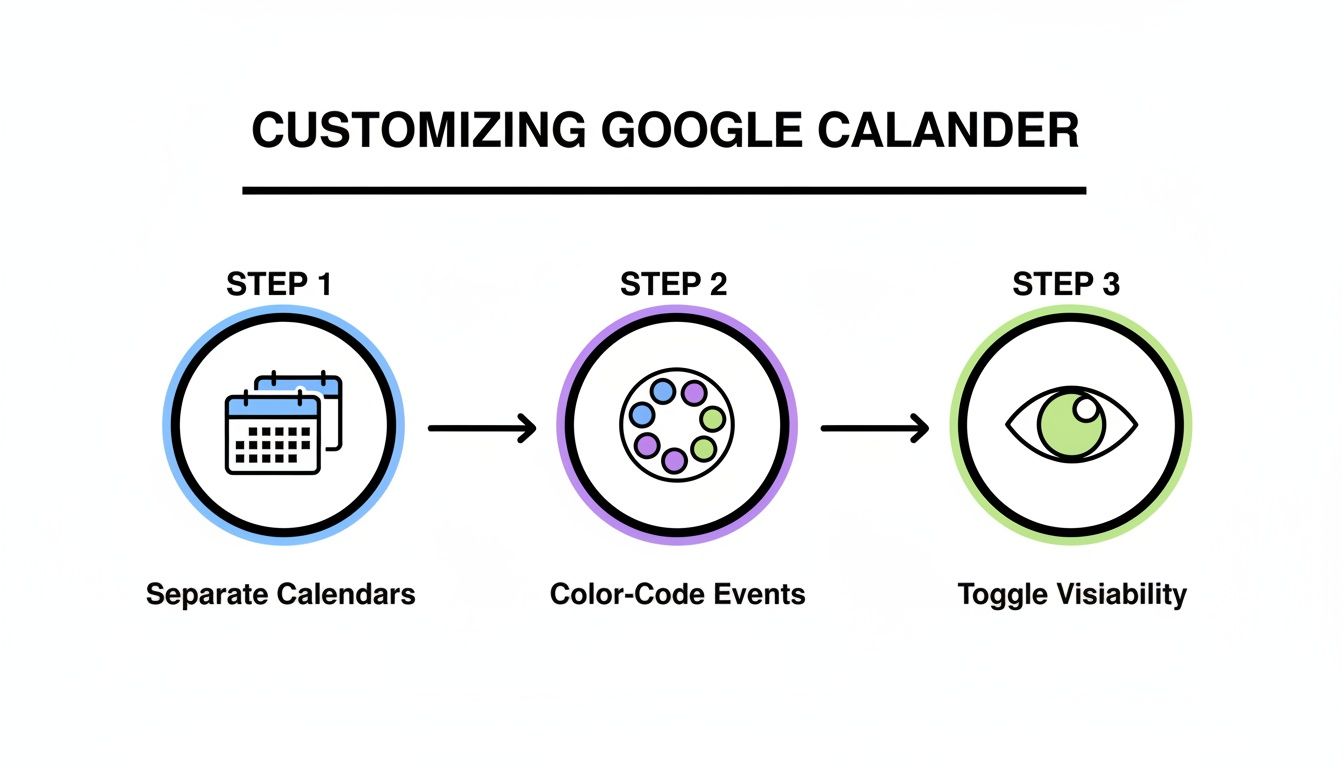
This simple, three-part process—separating, color-coding, and toggling—is the key to creating a dynamic dashboard that adapts to your focus at any given moment.
The Power of Multiple Calendars
First things first: stop lumping everything into your default calendar. The real power comes from segmenting your schedule into distinct life domains. This gives you granular control over not just your schedule, but more importantly, your focus.
For a growth-oriented professional, this might look something like this:
- Work Projects: A dedicated calendar for all professional deadlines, meetings, and project-specific tasks.
- Deep Work Blocks: A separate calendar to time-block non-negotiable sessions for high-value, focused work.
- Personal Growth: For scheduling time for courses, reading, or sessions with a mindset coach.
- Health & Wellness: To track gym appointments, meal prep reminders, and mindfulness practices.
- Family & Social: For all the personal commitments that keep your life in balance.
Creating a new calendar is straightforward. In the left-hand menu, just click the plus sign (+) next to “Other calendars” and choose “Create new calendar.” Give it a clear name, add a description if you like, and click “Create calendar.” Repeat this for each major area of your life you want to track.
Strategic Color-Coding for Instant Clarity
With your calendars set up, it’s time for the fun part: assigning a unique, strategic color to each one. This is where you really start to customize your Google Calendar. Colors act as instant mental shortcuts, letting you understand the shape of your day at a glance without reading a single event title.
For example, you could assign a sharp, professional blue to your ‘Work Projects’ calendar and a calming, restorative green to ‘Health & Wellness’. A high-energy orange might be perfect for ‘Personal Growth’. This isn’t just about making your calendar pretty; it’s a proven productivity hack. In fact, many business owners report up to 35% faster schedule scanning after implementing a personal color-coded system.
The goal is to associate each color with a specific type of energy or commitment. Over time, your brain will automatically recognize that a block of green means it’s time to be active, while a block of blue signals a period of focused professional output.
This visual mapping became a staple for a reason, with Google Calendar seeing over 2 million downloads monthly in the US alone. You can check out more stats about app usage for insights.
To help you get started, here’s a framework you can adapt for your own needs.
Strategic Color-Coding Framework
This table provides a practical starting point for assigning colors with intention, turning your calendar into a more intuitive tool.
| Category | Suggested Color | Purpose & Rationale |
|---|---|---|
| Deep Work | Forest Green | A calm, focused color that signals “do not disturb.” It’s for high-concentration tasks. |
| Client Calls | Bold Blue | A professional, clear color that stands out, indicating external-facing commitments. |
| Team Meetings | Graphite | A neutral, collaborative color for internal meetings and sync-ups. |
| Personal Growth | Bright Orange | An energetic, motivating color for activities like courses, reading, or skill development. |
| Health | Vibrant Red | An active, high-energy color perfect for workouts, sports, or other physical activities. |
| Admin/Life | Muted Gray | A low-priority color for errands and routine tasks that can be handled with less focus. |
Remember, the best system is the one you’ll actually use. Feel free to swap colors and categories until you find a combination that feels natural and instantly recognizable to you.
Toggling for a Clutter-Free Focus
The final piece of this puzzle is learning to use the toggle feature. In the left-hand sidebar, you can simply uncheck the box next to any calendar you want to hide temporarily. This is an incredibly powerful tool for eliminating visual noise and focusing only on what matters right now.
For instance, when you sit down for a deep work session, you can hide your ‘Personal’ and ‘Social’ calendars to kill potential distractions. When you’re planning your weekend, hide your ‘Work’ calendar to ensure you’re truly unplugging. This simple act of decluttering your digital space helps create the mental space you need for both peak performance and genuine rest.
Design Calendar Views for Focused Workflows
A one-size-fits-all calendar is a myth. While color-coding helps you quickly grasp what you’re working on, adjusting your calendar’s view is all about controlling the timeframe you focus on. The standard Day, Week, and Month views are a decent start, but let’s be honest, they rarely match the real rhythms of modern work.
This is where you can really start bending Google Calendar to your will. By moving beyond the defaults, you can create a layout that perfectly supports a four-day workweek, a two-week project sprint, or whatever structure actually helps you get things done.
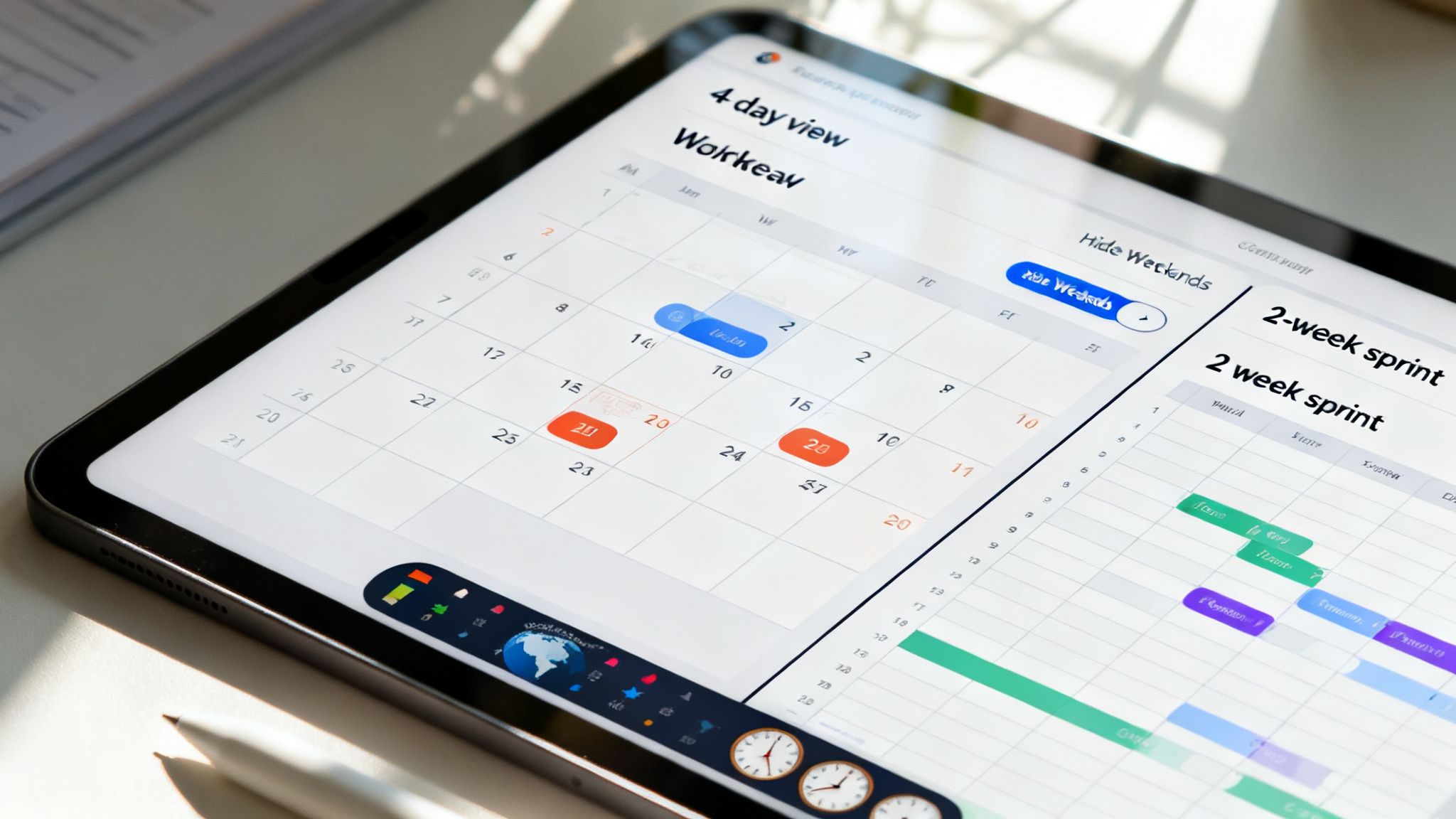
This image is a great example of how a well-organized calendar can become a central hub for managing projects. Customizing your view is the first step toward getting this kind of clarity and control over your own schedule.
Crafting a Custom View for Your Rhythm
The standard week view shows seven days. But what if you work a four-day week or plan your projects in intense, 10-day sprints? Sticking to the default means you’re constantly looking at irrelevant days, which creates a surprising amount of mental clutter.
Google Calendar lets you create a custom view ranging from 2 to 7 days, and this simple tweak can be a game-changer. For instance, setting a 4-day view helps you laser-focus on your core workdays. I’ve found a 2-day view is also perfect for really intense, short-term planning sessions.
Here’s how to set it up:
- Click the Gear icon in the top-right corner and select Settings.
- Under the “General” tab, find the “View options” section.
- Click the dropdown next to “Set custom view” and pick the number of days that works for you.
Now, you’ll see a new “Custom View” option in the main calendar interface, right next to Day, Week, and Month.
By tailoring your calendar’s window to your actual work cycle, you align your primary tool with your primary goals. It’s a small change that significantly reduces distractions and sharpens your focus on what truly needs to get done.
Streamline Your View by Hiding Weekends
For most of us, weekends are for anything but work. Yet, by default, Saturday and Sunday take up valuable screen real estate, stretching your workweek and making it harder to scan at a glance. Hiding them is an easy win for a cleaner, more focused calendar.
In that same “View options” area of your settings, you’ll see a checkbox for “Show weekends.” Just uncheck it. This will remove Saturday and Sunday from your Week and Month views, giving you a condensed, work-centric layout that visually separates your professional and personal time.
Set Your Default View and Start of the Week
How do you naturally look at your schedule? Do you prefer a high-level monthly overview or a more granular weekly plan? Google Calendar lets you set the default view that appears every time you open it, saving you a click and immediately giving you the perspective you need.
While you’re in the “View options,” you can also set your week to start on Saturday, Sunday, or Monday. This is more than a simple preference; it aligns the calendar with your cultural or personal rhythm, making your planning feel more natural and intuitive.
Productivity hacks like this have seen a 40% jump in adoption as people look for more efficient ways to work. In fact, professionals who switch to custom views and hide weekends report completing 33% more tasks by focusing only on output. If you want to see how different calendar tools stack up, check out this detailed comparison on Jotform.
Add World Clocks for Global Collaboration
If you work with a distributed team or have clients in different time zones, the world clock is a must-have. Instead of constantly doing mental math or Googling “what time is it in London?”, you can see other time zones right on your calendar.
To turn this on, head back into your Settings:
- Make sure “Display world clock” is checked.
- Click “Add time zone” and search for the cities you need.
This small addition eliminates confusion, prevents embarrassing scheduling mishaps, and makes your calendar a reliable hub for global collaboration. It’s a simple customization that makes a world of difference.
Master Your Notifications for Uninterrupted Focus
Constant pings and alerts are the arch-nemesis of deep work. You know the feeling—a single, random notification pops up and completely shatters your concentration. Suddenly, a productive hour spirals into a frustrating mess of context switching.
If you really want to get the most out of Google Calendar, you have to look beyond just colors and views and get a handle on its notification system. This isn’t about turning everything off. It’s about building a smarter, tiered system that respects your time and attention.
Tiered Reminders for Your Most Important Events
Let’s say you have a major client presentation coming up. A single 10-minute reminder just isn’t going to cut it. That’s a recipe for last-minute panic. What you really need is a layered approach that prompts you at different stages of preparation.
For a high-stakes event, a more strategic reminder system might look like this:
- 1 Day Before: A gentle nudge to review your deck and finalize your talking points.
- 1 Hour Before: This is your cue to start switching gears. Close down other work, grab some water, and get into the right headspace.
- 10 Minutes Before: The final prompt to jump on the call, test your mic and camera, and be ready to go.
Setting this up is easy. Just open an event, click the pencil icon to edit it, and find the notification settings. From there, you can click “Add notification” as many times as you need. I like to mix email and pop-up alerts to create a system that ensures nothing slips through the cracks.
Set Default Notifications for Each Calendar
Constantly tweaking notifications for every single event you create is a massive time sink. A much better approach is to set different default reminders for each of your calendars. For instance, my ‘Deep Work’ calendar has zero reminders by default, but my ‘Client Calls’ calendar needs at least one.
To do this, head over to Settings > Settings for my calendars and pick the calendar you want to adjust. Under the “Event notifications” section, you can set up the default alerts that will automatically apply to any new event on that calendar. It’s a simple, proactive step that saves a ton of clicks down the line.
This calendar-level control is your first line of defense against notification fatigue. By setting intelligent defaults, you ensure that only the truly important calendars have the power to interrupt your focus.
Get a Calm Start with the Daily Agenda
Instead of waking up to a storm of pop-ups, you can start your day with a calm, organized overview. The daily agenda email is one of my favorite underrated features. It sends a clean summary of your day’s events straight to your inbox at 5 a.m.
To turn it on, go back into your calendar’s settings and scroll down to the “Other notifications” section. Just change the “Daily agenda” dropdown from “None” to “Email.” This one tiny change can shift your whole morning from a reactive scramble to a proactive, intentional start.
Create Sacred Space with Focus Time
For anyone serious about their work, carving out time for deep, uninterrupted focus is non-negotiable. This is exactly what Google Calendar’s “Focus time” feature was built for. When you block out “Focus time” on your calendar, it automatically declines any conflicting meeting invites that come in.
This does more than just put a block on your schedule; it builds a protective wall around your most important work sessions. In a world where over 60% of professionals say notification overload is a major productivity killer, this is huge. You can even find calendar extensions that take this a step further, as covered in Pumble’s detailed review. Creating these protected blocks of time is a cornerstone of learning how to eliminate distractions and take back control of your day.
Put Your Schedule on Autopilot with Smart Features
Once you’ve nailed the visual setup, it’s time to get into the real power of Google Calendar: automation. This is where you graduate from simply tracking your time to actively protecting it. The goal is to let the calendar do the heavy lifting, building a buffer around your focus time and killing off those tedious back-and-forth scheduling emails for good.
Think of it as transforming your calendar from a passive diary into a proactive assistant. It’s about offloading all the mental energy you spend coordinating with people. Instead of being stuck in an endless loop of “When are you free?” messages, you can build a system that just works.

Set Your Working Hours and Availability
First things first: tell Google Calendar when you’re actually on the clock. The working hours feature lets you define the specific days and times you’re available to meet. It’s a simple but powerful way to set boundaries.
Once you set this up, anyone in your organization who tries to book you outside of those hours will get a little heads-up that you might not be around. To get it done, just head to Settings > General > Working hours and fill out your weekly schedule. This is the foundation for everything else.
Create a Public Appointment Schedule
This is a complete game-changer if you frequently book time with clients, new hires, or anyone outside your immediate team. Instead of emailing back and forth, you can create a public booking page with your available slots. People just click the link, pick a time that works for them, and it’s done.
You can customize everything—create different appointment types for a 15-minute check-in versus a 60-minute consultation, and even automatically add buffer time between meetings so you’re not jumping from one call to the next. It’s a beautifully efficient way to manage your time while making it easy for others.
When you automate the booking process, you’re doing more than just saving time—you’re cutting down on decision fatigue. That frees up your brainpower for the work that actually matters, which is a huge part of learning how to stop procrastinating on your most important tasks.
Use the Out of Office Function Intelligently
The Out of Office feature is more than just a status update; it’s an automated gatekeeper. When you block out time as “Out of Office,” Google Calendar will automatically decline any new meeting invites that land in that period.
You can even write a custom message for the decline notification, maybe pointing people to a colleague for urgent matters or suggesting they reschedule. I use this not just for vacations but also for dedicated deep-work blocks. It’s an airtight defense against interruptions.
Small Automations That Make a Big Difference
Beyond the big features, a few tiny tweaks in the settings can have a surprisingly large impact on your day-to-day sanity.
- Speedy Meetings: Dig into your event settings and turn this on. It automatically shortens your meetings, so a 30-minute block becomes 25, and an hour-long one becomes 50. This carves out a built-in 5-10 minute buffer to grab a coffee, stretch, or just reset before your next call.
- Automatically Add Travel Time: If you have an in-person meeting, Google Calendar can automatically calculate the travel time and block it out for you. This is a lifesaver for preventing accidental double-bookings and ensuring you actually show up on time, without the stress.
Master Keyboard Shortcuts for Rapid Navigation
Getting comfortable with a few keyboard shortcuts is the final step to true calendar mastery. It feels so much faster to tap a key than it does to click through a bunch of menus.
Learning just a handful of these can seriously speed up how you create, find, and edit your events.
Essential Google Calendar Keyboard Shortcuts
Here’s a quick-reference table of the shortcuts I find myself using every single day.
| Action | Keyboard Shortcut (Windows/Mac) | Productivity Benefit |
|---|---|---|
| Create a new event | c |
Instantly open the event creation window from any view. |
| Go to today’s date | t |
Quickly jump back to the current day, no matter where you are. |
| Search your calendar | / |
Open the search bar to find any past or future event instantly. |
| Switch to Day view | 1 or d |
Get a detailed, hour-by-hour look at your current day. |
| Switch to Week view | 2 or w |
See your entire week at a glance for better planning. |
| Switch to Month view | 3 or m |
Zoom out for a high-level overview of your monthly commitments. |
| Save an event | Ctrl+s / Cmd+s |
Save your event details without needing to click the “Save” button. |
Commit these to muscle memory, and you’ll feel like you’re flying through your calendar management tasks.
Integrate Your Calendar into a Unified System
Your calendar shouldn’t be an island. A truly powerful Google Calendar acts more like a central hub for your entire productivity ecosystem, pulling in data from all the other tools you depend on every day. When you connect it to your task managers, note-taking apps, and communication channels, you create a single, reliable source of truth for how your time is allocated.
This kind of integration is a game-changer because it stops the constant app-switching that absolutely kills focus. Instead of checking Trello for a project deadline and then hopping over to your calendar to manually block out time, you can build a system that syncs them automatically. This creates a seamless flow of information, giving you a complete, up-to-the-minute picture of your commitments.
Connect Your Task Management Apps
For most of us, our to-do list lives in one place—like Asana, Trello, or Todoist—while our schedule lives in another. The first step in creating a unified view is to bridge that gap. Luckily, most modern task management platforms let you generate a unique calendar feed link.
Getting this set up is straightforward:
- In Google Calendar, find the plus sign (+) on the left sidebar, next to “Other calendars.”
- Choose “From URL” from the menu that appears.
- Just paste the link from your task app and click “Add calendar.”
That’s it. Your tasks with due dates will now pop up right on your calendar. Seeing an Asana project deadline right next to a client meeting gives you a much more grounded, realistic sense of your actual workload. It lets you plan your time with a level of clarity you just can’t get when everything is siloed.
Create Powerful Workflows with Automation
This is where things get really interesting. With automation platforms like Zapier or IFTTT (If This Then That), you can make Google Calendar do almost anything you want. These tools act as the glue between your favorite apps, letting you create custom rules—often called “Zaps” or “Applets”—that trigger actions automatically.
The possibilities are practically endless. You’re no longer stuck with the features an app decides to give you; you can build a completely custom system that handles your most annoying, repetitive tasks without you ever lifting a finger.
Think of automation as building your own personal assistant. By setting up a few simple rules, you can offload the mental clutter of remembering to do small, tedious tasks, which is a key part of effective energy management solutions for a productive life.
For instance, you could rig up an automation that:
- Creates a calendar event from a specific email. When you star an important email in Gmail, Zapier can automatically add an event to your calendar for the next day titled “Follow up on email.”
- Blocks out focus time for new projects. Add a new card to your “In Progress” list in Trello, and an automation can instantly create a 2-hour “Deep Work” block on your calendar.
- Logs your accomplishments. When you check off a task in Todoist, IFTTT can create an all-day event on a separate “Wins” calendar, giving you a great visual record of what you’ve gotten done.
Supercharge Your Browser with Extensions
Browser extensions are a fantastic way to smooth out the rough edges of the standard Google Calendar interface and add powerful new functionality. They can bring new visual tweaks, speed up common actions, and give you at-a-glance access to your schedule without ever needing to open a new tab.
Two of the most popular and genuinely useful extensions I’ve come across are:
- Checker Plus for Google Calendar: This one is a fan favorite for good reason. It puts a small icon in your browser toolbar that opens a dropdown menu with your schedule. You can see upcoming events, add new ones with natural language (“Lunch with Sarah tomorrow at 1 pm”), and even join video calls with a single click. It’s the fastest way to interact with your calendar.
- GCalPlus: If you’re a visual person, you’ll love GCalPlus. It’s all about customization, giving you options to color-code different days of the week, change font styles, and add clean visual separators between days. It lets you make your calendar look exactly how you want.
These kinds of tools help you fine-tune the experience, turning the default calendar into a true command center that’s perfectly molded to your personal work style.
Got Questions About Customizing Google Calendar?
Even with a solid plan, jumping into any app’s settings can feel like opening a can of worms. As you start tweaking Google Calendar to fit your workflow, you’ll probably run into a few specific quirks or questions. I’ve been there. This section is all about tackling those common hurdles head-on with quick, straightforward answers.
Think of this as your go-to troubleshooting guide for calendar optimization. We’ll cover the practical stuff, from sharing your availability without oversharing your life to figuring out why those crucial reminders aren’t hitting your phone.
How Can I Change the Color of Just One Event?
This is a great question and a super common point of confusion. Normally, an event just inherits the color of whatever calendar it lives on. But sometimes, a single appointment needs to scream for your attention—like a critical deadline that’s part of a much larger project.
It’s actually pretty simple. Just right-click on the specific event you want to highlight. A color palette will pop up, letting you assign a unique color to that one event. This little trick is perfect for adding a layer of visual priority without having to create an entirely new calendar.
For instance, I might have a blue “Work Projects” calendar, but I’ll turn the “Submit Final Report” event bright red. It’s an instant, unmissable visual cue.
Can I Show People I’m Busy Without Showing Them Why I’m Busy?
Absolutely. This is probably one of the most critical features for balancing collaboration with privacy. When you share your calendar, you get to be the gatekeeper of your own information.
To set this up, head over to Settings > Settings for my calendars. Pick the calendar you want to share, then look for the “Access permissions for events” section.
You’ll see a couple of key options:
- See only free/busy (hide details): This is the setting you’ll want to use 99% of the time with colleagues. They can see when you’re booked but have no clue what the meetings are about.
- See all event details: This lets people see event titles, descriptions, and attachments. Save this for a trusted executive assistant or a very close collaborator on a specific project.
Choosing the “free/busy” option is more than just a setting; it’s a professional courtesy. It makes scheduling easy for everyone while respecting personal boundaries.
Why Aren’t My Notifications Showing Up on My Phone?
Ah, the classic silent treatment from your phone. This is usually a simple fix and almost always comes down to a communication breakdown between your desktop settings and your mobile app. If you know your notifications are set up correctly on your computer but your phone isn’t buzzing, there are two main culprits.
First, check the Google Calendar app itself. Open the app on your phone, dive into its settings, and confirm that notifications are actually turned on for each calendar within the app. Mobile settings can sometimes override what you’ve set on your desktop.
Second, and what I find is more often the issue, is your phone’s system-level permissions. You need to tell your phone it’s okay for the Calendar app to bother you.
- On an iPhone, go to Settings > Notifications > Calendar.
- On an Android, it’s usually Settings > Apps > Calendar > Notifications.
Make sure you’ve given the app permission to send alerts. It’s a tiny detail that’s easy to miss during setup but makes all the difference.
Is There a Fast Way to Duplicate an Event?
Yes, and this is a massive time-saver. It’s especially useful for those one-off events that repeat, but not on a predictable schedule—like a monthly check-in that always lands on a different day. Instead of building the event from scratch each time, just copy it.
Click on the event you want to duplicate. In the little window that pops up, click the three-dot menu icon and choose “Duplicate.”
This instantly creates a carbon copy with all the original details—title, guests, location, notes, everything. All you have to do is drag it to the new date and time. It’s so much faster than manually re-entering all that info.
At David Pexa, we believe that mastering your tools is the first step toward mastering your day. By applying these practical strategies and troubleshooting tips, you can transform your calendar from a simple scheduler into a powerful ally for personal and professional growth. For more insights on building a productive and intentional life, explore our resources.
