


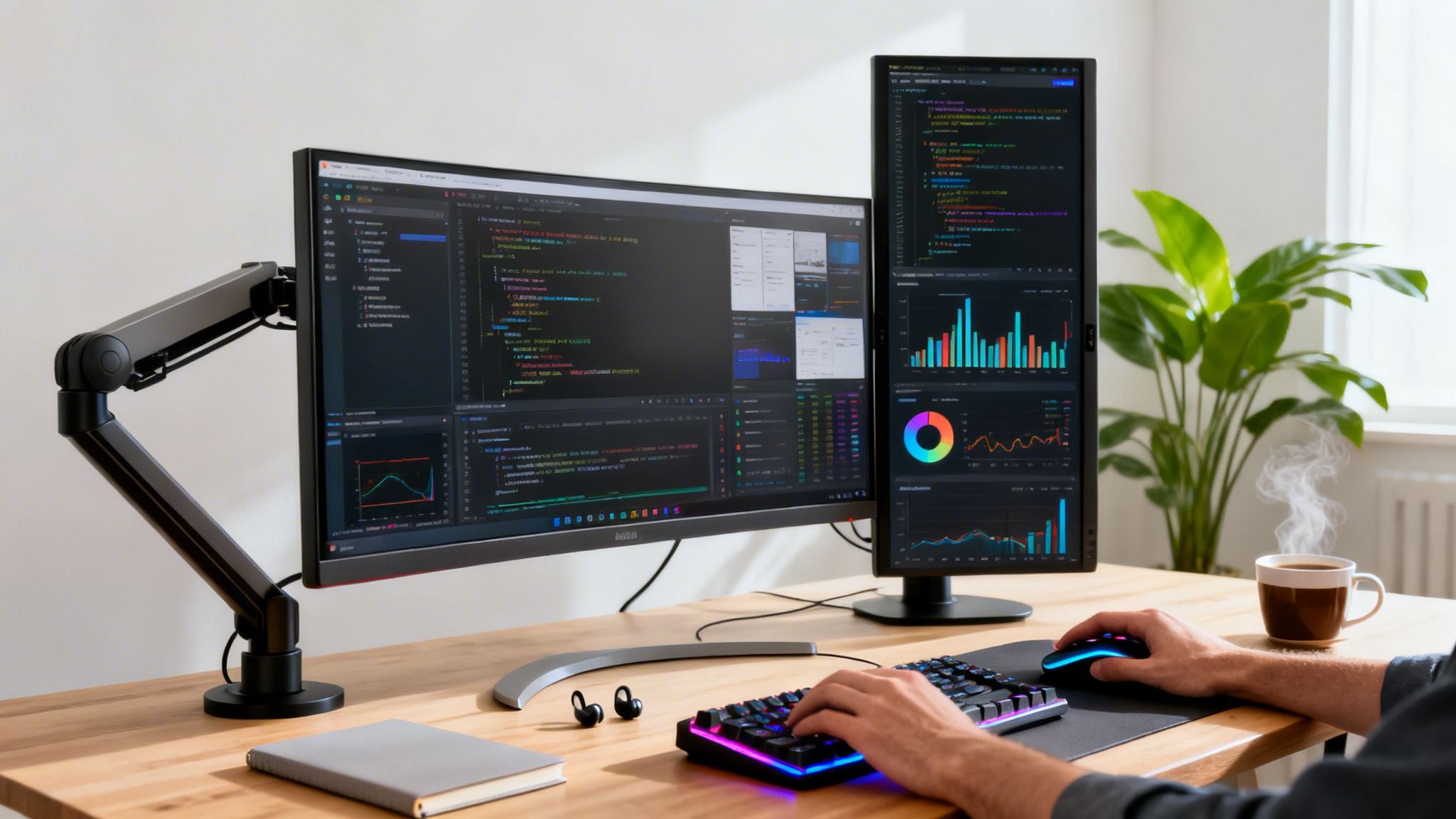
Summary: The best productivity monitors for peak performance in 2026 — reviewed across screen size, resolution, ergonomics, and multitasking features. Find the right display for focused work without the analysis paralysis.
I didn’t think a monitor mattered much — until I spent a week on a 32-inch 4K display after years of squinting at a 13-inch laptop. It was like going from a keyhole to a window. Everything I needed was visible at once, and the mental overhead of constantly switching tabs just… vanished. If you’re still working on whatever screen came in the box, this guide is for you.
I’ve spent years optimizing workspaces, and I can tell you this: nothing upgrades your setup more dramatically than the right monitor. A great productivity monitor isn’t just about a big screen. It’s the thoughtful combination of size, 4K resolution, and clean connectivity like USB-C that clears the clutter from your desk and your mind.
You’ll see names like the Dell UltraSharp U3223QE pop up for its incredible color and all-around performance, the LG 40U990A-W for anyone who needs to juggle a dozen windows at once, and the Apple Studio Display for those deep in the Mac ecosystem.
How To Choose The Best Productivity Monitor For Your Workflow

In a world where many of us work from home, your monitor is your window to getting things done. Investing in the right one is a direct line to reducing eye strain, giving yourself more digital real estate, and finding that elusive state of flow. It’s more than just a screen; it’s a tool that pays for itself in focus and output.
This isn’t just a hunch; the market reflects this shift. The global computer monitor market is set to climb from USD 49.62 billion to an estimated USD 64.23 billion by 2031. This growth is fueled by professionals looking for an edge, especially when studies show that using multiple monitors can boost productivity by as much as 42%. And with high-resolution panel prices dropping, a sharp 4K display is no longer a luxury. If you’re interested in the data, the full computer monitor market analysis from Mordor Intelligence offers a deep dive.
What I Actually Take
BrainSupreme GENIUS
The hardest part of working at a screen all day isn’t the screen — it’s holding focus across the small distractions a modern monitor invites (Slack ping, browser tab pull, email preview). GENIUS is what I take on days I know I need a clean six-hour stretch. It’s not a stimulant. It’s the difference between sitting down to work and actually working.
Top Productivity Monitor Picks At A Glance
Before we get into the nitty-gritty details, here’s a quick look at our top recommendations. This table is designed to help you quickly pinpoint the best monitor for your specific needs and budget.
| Monitor Model | Best For | Key Features | Price Tier |
|---|---|---|---|
| Dell UltraSharp U3223QE | All-Around Excellence | 4K, IPS Black, KVM Switch, 90W USB-C | $$$ |
| LG 40U990A-W | Immersive Multitasking | 5K2K Curved Ultrawide, Thunderbolt 4 | $$$$ |
| Apple Studio Display | Mac Users | 5K Retina, Premium Build, Studio Mic/Cam | $$$$ |
| BenQ PD3225U | Creative Professionals | 4K, 99% sRGB/Rec.709, KVM, Hotkey Puck | $$$ |
| Gigabyte M32U | Hybrid Work & Play | 4K, 144Hz, HDMI 2.1, KVM Switch | $$ |
This table gives you a starting point, but the real magic happens when your monitor perfectly matches your daily tasks.
Your monitor is the bottleneck or the enabler of your entire workflow. Choosing one that matches your tasks—whether it’s an ultrawide for coding or a color-accurate 4K for design—is a direct investment in your daily focus and output.
Of course, the best monitor is only as good as the computer powering it. To create a truly seamless setup where the technology just disappears, you need a machine that can keep up. Check out our guide on the best laptops for productivity to make sure your entire system is built for performance.
What Actually Makes a Great Productivity Monitor?
When you spend eight hours a day staring at a screen, you realize it’s more than just a display—it’s your primary tool. Picking the right one can feel like navigating a minefield of acronyms and specs, but don’t get bogged down. Let’s cut through the noise and talk about what really moves the needle for getting work done.
The right monitor doesn’t just show you your work; it expands your workspace, reduces eye strain, and can genuinely help you focus.
First Things First: Screen Size and Resolution
These two are a team. You can’t talk about one without the other. A huge monitor with a low resolution will give you fuzzy, pixelated text that’s a nightmare to read. On the flip side, a tiny screen with a crazy-high resolution will shrink everything to an unreadable size without some serious display scaling.
For most people, the new standard is a 27-inch monitor with QHD (2560×1440) resolution. It’s a massive upgrade in screen real estate and clarity over the old 1080p displays. But if you’re a developer, designer, or anyone who spends all day with walls of text or fine details, stepping up to 4K (3840×2160) is a game-changer. The text is so sharp it almost looks like it’s printed on paper, which makes a huge difference in eye fatigue by the end of the day.
The Great Debate: Ultrawide vs. Dual Monitors
The shape of your screen, its aspect ratio, fundamentally changes how you multitask. This usually comes down to a choice between two traditional 16:9 monitors side-by-side or one seamless ultrawide monitor.
-
Dual Monitors (16:9): The classic two-screen setup is perfect for compartmentalizing your work. It lets you create a physical separation for your tasks—maybe Slack and email live on the left screen, while your main project stays on the right. This helps create mental guardrails, keeping distractions separate from your deep work.
-
Ultrawide Monitors (21:9 or 32:9): An ultrawide gives you one continuous, immersive workspace with no bezel in the middle to break your flow. This is fantastic for video editors managing long timelines, analysts working with massive spreadsheets, or researchers comparing documents side-by-side. It creates a “cockpit” effect that helps many people feel completely locked in.
Think of it this way: An ultrawide is like having a huge, open-concept desk where everything is within view. A dual-monitor setup is like having two separate, specialized desks—one for communication and one for focused projects. Neither is inherently better, they just support different ways of working.
The right choice really just boils down to your personal workflow. If you like to organize your tasks into distinct buckets, two monitors will probably serve you well. If you prefer a fluid, all-in-one canvas for complex projects, an ultrawide is a worthy investment.
Panel Tech, Color, and Essential Connections
The technology inside the screen is just as important. For productivity, an IPS (In-Plane Switching) panel is the way to go, hands down. They deliver fantastic color accuracy and wide viewing angles, meaning the image looks great and the colors stay true even if you’re not sitting perfectly centered.
We’re also seeing a push for features that were once only for gamers or creatives. Data from the latest production monitoring market report shows that high-end setups with 98% DCI-P3 color coverage and a smooth 120Hz refresh rate can significantly lower cognitive load. Plus, modern IPS panels with integrated blue-light filters can cut sleep disruption by up to 30%, promoting a healthier work-life balance.
Finally, don’t overlook connectivity. A good productivity monitor should make your life simpler, not add to the cable mess. USB-C with Power Delivery is a must-have. With a single cable, you can send video to your monitor, transfer data, and charge your laptop all at once. It effectively turns your monitor into a hub, cleaning up your desk and letting you get right to work the moment you plug in.
Comparing The Top Productivity Monitors Of 2026
Picking the right monitor for work isn’t about finding a single “best” model—it’s about matching the display to what you do every day. A financial analyst staring at spreadsheets has entirely different needs than a graphic designer obsessed with color. So, let’s move past the marketing hype and get into a real head-to-head comparison of how our top picks actually perform on the job.
This isn’t a simple showdown to crown one winner. Think of it as a guide to help you invest in the right tool, clarifying which display truly excels at specific tasks so you can buy with confidence.
Dell UltraSharp U3223QE Versus The Competition
The Dell UltraSharp U3223QE has earned its reputation as the gold standard for professional productivity, and for good reason. It’s a 32-inch 4K monitor that hits the sweet spot between high-end performance and day-to-day practicality, making it a fantastic all-rounder. Its secret weapon is the IPS Black technology, which pushes the contrast ratio to 2000:1—double what you’d get from a typical IPS panel.
If you spend your day working with text or data, this makes a huge difference. Blacks are genuinely deep, and text looks incredibly sharp, which helps cut down on eye strain during long workdays. But its real strength lies in its versatility. With a built-in KVM switch and a hub of useful ports, including a 90W USB-C connection, you can effortlessly toggle between your work laptop and a personal PC using just one keyboard and mouse.
The best productivity monitors are built on a foundation of three key pillars: high resolution for clarity, great ergonomics for comfort, and versatile connectivity for a clean setup.

These core specifications are what separate a display that just works from one that actively boosts your daily output.
LG 40U990A-W: The Ultrawide Powerhouse
If the Dell is the reliable workhorse, the LG 40U990A-W is the immersive command center. This is a massive 40-inch curved ultrawide with a brilliant 5K2K (5120×2160) resolution. You’re essentially getting the screen real estate of two QHD monitors fused into one seamless panel, without that annoying bezel down the middle.
For a developer, that means seeing your code, terminal, and project documentation all at once. For a video editor, it’s laying out your entire timeline without endlessly scrolling back and forth. The gentle curve is more than a gimmick; it subtly wraps the screen around your field of view, reducing head movement and keeping you locked in.
While the Dell UltraSharp U3223QE is the versatile multi-tool, the LG 40U990A-W is the specialized instrument. Choose the Dell for its balanced excellence and connectivity; choose the LG for its sheer, uninterrupted digital canvas.
The LG also comes equipped with Thunderbolt 4, providing 96W of power and the ability to daisy-chain other devices. Be warned, though: its enormous footprint and premium price tag make it a specialist’s tool. It’s the best choice for professionals whose work can truly take advantage of a panoramic digital workspace.
Apple Studio Display Versus BenQ PD3225U
For anyone deep in the Apple ecosystem, the Apple Studio Display is an obvious contender. This 27-inch 5K Retina display delivers unmatched pixel density, making text and images look stunningly crisp. The build quality is exceptional, and the integrated high-fidelity webcam, microphone array, and speakers are genuinely impressive.
But it’s not without its trade-offs. The limited port selection, lack of height adjustment on the base model, and steep price make it a hard recommendation for anyone outside a Mac-centric creative workflow. It’s designed to be a perfect, seamless extension of a MacBook, but it just doesn’t have the flexibility of its competitors.
That’s where the BenQ PD3225U comes in as a fantastic alternative, especially for creative pros who want platform flexibility. This 32-inch 4K display is engineered for designers, delivering 99% sRGB/Rec.709 color accuracy right out of the box. Small details like its Hotkey Puck—a desktop controller for quickly swapping color modes—and a built-in KVM switch are all geared toward a more practical, efficient workflow. It may not have the Studio Display’s 5K resolution, but its larger screen, full ergonomic adjustability, and thoughtful features offer incredible value.
The market demand for these kinds of upgrades is clear. The global monitor market is expected to hit $87.2 billion by 2030, a trend powered by professionals seeking better hardware. When you combine a great display with the right productivity software—a sector projected to reach $149.74 billion—you create a powerful efficiency loop. In fact, upgrading to a monitor with a high refresh rate can reduce visual fatigue by 15-20%, allowing for longer periods of focused work. For more on these trends, you can review market analysis from sources like The Business Research Company.
Feature-By-Feature Comparison Of Top Productivity Monitors
To help you see the differences more clearly, here is a detailed breakdown comparing the key specifications and real-world performance of our top-rated monitors for productivity.
| Feature | Dell UltraSharp U3223QE | LG 40U990A-W (Curved Ultrawide) | Apple Studio Display | BenQ PD3225U |
|---|---|---|---|---|
| Primary Use Case | All-Around Productivity | Immersive Multitasking | Mac-Centric Creatives | Color-Accurate Design |
| Resolution & Size | 4K (3840×2160) @ 32″ | 5K2K (5120×2160) @ 40″ | 5K (5120×2880) @ 27″ | 4K (3840×2160) @ 32″ |
| Key Differentiator | IPS Black Panel, KVM | Curved Ultrawide Canvas | 5K Retina Clarity, Build | Hotkey Puck, 99% sRGB |
| Connectivity Hub | Excellent (USB-C 90W) | Strong (Thunderbolt 4 96W) | Limited (1x TB3, 3x USB-C) | Good (USB-C 90W, KVM) |
| Ergonomics | Fully Adjustable | Tilt, Swivel, Height | Tilt-Only (Standard) | Fully Adjustable |
In the end, the “best” monitor is simply the one that removes the most friction from your daily grind. By understanding these key differences, you can pick a display that will be a powerful ally in your work for years to come.
Monitor Recommendations For Your Profession
Let’s be honest: the “best” monitor doesn’t exist. What works for a graphic designer will drive a programmer crazy, and vice versa. Your monitor is one of your most important tools, so choosing the right one comes down to the specific demands of your job.
Instead of just throwing specs at you, we’re going to walk through common professions and explain which monitor features actually make a difference in the real world. Think of this as a guide to matching the display to your daily grind, whether you’re buried in spreadsheets or perfecting a pixel-perfect design.
The Multitasking Project Manager
If you’re a project manager, your screen is a command center. Your day is a constant flood of information—Gantt charts, sprawling spreadsheets, team chats, and an army of browser tabs all vying for your attention. The biggest challenge isn’t the work itself, but managing the chaos.
This is where an ultrawide monitor like the LG 40U990A-W completely changes the game. That extra horizontal real estate from a 21:9 or 32:9 aspect ratio gives you a panoramic view of everything at once. Imagine your project timeline stretched out on one side, with your team’s chat and email sitting comfortably on the other. No more frantic alt-tabbing.
It’s about more than just seeing more; it’s about reducing the mental load of constantly switching contexts. Everything stays in your line of sight, which helps you keep your bearings and react faster. A curved ultrawide takes this a step further, wrapping the display around you to create an immersive workspace that genuinely helps you focus.
The Focused Coder and Developer
For coders and developers, two things matter more than anything else: razor-sharp text and enough vertical space to see your code without endless scrolling. After staring at syntax for eight hours, even the slightest bit of fuzziness can cause serious eye strain.
A high-resolution 4K (3840×2160) monitor between 27 and 32 inches is the sweet spot. The incredible pixel density makes text look almost printed, allowing you to use smaller fonts to fit more code on the screen without sacrificing an ounce of legibility.
Many developers also swear by a monitor that can pivot 90 degrees into a vertical “portrait” orientation. This setup is a lifesaver for writing long scripts, reviewing pull requests, or scrolling through documentation because it mimics the natural top-to-bottom flow of the content. A display like the Dell UltraSharp U3223QE is a perfect example, combining that crisp 4K panel with the ergonomic flexibility to adapt to how you work best.
A developer’s monitor has one job: make code easy to read for hours on end. A 4K display flipped vertically isn’t a gimmick; it’s a purpose-built tool that lets you see hundreds of lines at once, spot errors more easily, and reduce the physical strain of constantly chasing your cursor down the page.
The Creative Professional
For anyone working in visual fields—graphic design, video editing, photography—your monitor is your canvas. Color accuracy isn’t a feature; it’s a fundamental requirement. If the red on your screen doesn’t match the red in the final print or digital file, your work is fundamentally broken.
This means you should be looking for monitors with exceptional color coverage, with a minimum of 98% DCI-P3 or 99% Adobe RGB. A factory-calibrated report in the box is a great sign, as it means the display is accurate from the moment you plug it in. Models like the BenQ PD3225U are designed from the ground up for this, offering certified color accuracy and helpful modes for different color spaces, like sRGB.
Beyond pure color, a 4K resolution on a 32-inch screen provides a massive, detailed workspace. It lets you edit high-resolution photos or 4K video at a 1:1 pixel ratio while still leaving plenty of room for your tools and palettes. Also, pay close attention to brightness uniformity—you want to be sure that a solid white background looks perfectly even from corner to corner, with no dim spots or color shifts.
Optimizing Your Monitor For Maximum Productivity And Wellness
Getting a great new monitor is only half the battle. If you don’t take the time to set it up correctly, you’re leaving productivity—and more importantly, your long-term comfort—on the table. A poorly positioned screen can quickly lead to eye strain, neck pain, and a serious drain on your focus.
The good news is that a few minutes of fine-tuning is all it takes to dial in your setup for your specific workflow and body. Think of it as a small investment that pays huge dividends in both output and daily wellness.

Setting Up For Ergonomic Success
First things first, let’s talk ergonomics. This isn’t just a buzzword; it’s the foundation of a healthy and productive workspace. Getting your monitor’s position right from day one is the single most effective way to prevent physical discomfort and bad habits.
Thankfully, most quality productivity monitors come with stands that offer a full range of height, tilt, and swivel adjustments. Here’s a simple checklist to get it right:
- Adjust the Height: The top edge of the screen should be at or just slightly below your eye level. This simple adjustment keeps you from hunching over or craning your neck up, promoting a natural, neutral posture.
- Set the Distance: Sit back comfortably in your chair and reach your arm straight out. Your fingertips should just about touch the screen. This arm’s-length rule—usually around 20-30 inches—is the sweet spot for reducing eye strain without making you lean in to read text.
- Find the Right Angle: Tilt the screen back about 10-20 degrees. This ensures your line of sight is perpendicular to the display, which dramatically cuts down on glare from overhead lights and makes for a much more comfortable viewing experience.
Remember, your monitor is part of a larger system. To truly dial in your workspace, your desk and chair have to work in harmony. If you’re serious about creating a dynamic and healthy setup, check out our guide on the best standing desks for a home office.
Calibrating Your Display And Mastering Software
With the physical setup complete, it’s time to tune the picture. While most pro-grade monitors have decent factory settings, a quick calibration ensures you’re seeing accurate colors. This is non-negotiable for creative work, but it also helps reduce eye fatigue for everyone else. Your operating system has a built-in calibration wizard that will guide you through setting brightness, contrast, and color balance.
Your monitor’s software is the secret weapon for unlocking its full potential. Features like Picture-by-Picture (PBP) and window management tools turn a great screen into a command center for deep work.
Don’t skip over the software that came with your display. Utilities like Dell Display Manager or LG OnScreen Control are powerful tools. They let you create custom screen layouts, switch inputs, and tweak settings on the fly without ever touching the monitor’s clunky physical buttons.
For even more power, I highly recommend exploring system-wide tools like Microsoft’s PowerToys. Its FancyZones feature is a game-changer, allowing you to create complex, customized grids to snap your windows into. Mastering these tools gives you military-grade precision over your digital workspace, transforming how you multitask and stay focused.
Frequently Asked Questions About Productivity Monitors
You’ve waded through the specs and read the reviews, but a few nagging questions can still make pulling the trigger on a new monitor feel like a huge commitment. Let’s clear the air and tackle some of the most common debates so you can feel completely confident in your final choice.
Getting this right isn’t just about buying a new gadget; it’s an investment in your focus, comfort, and sanity for years to come.
Is An Ultrawide Or Dual Monitor Setup Better For Productivity?
Ah, the great debate. The honest answer is that there’s no single “best” setup—it all boils down to your personal workflow and how your brain is wired.
An ultrawide monitor is all about a seamless, panoramic workspace. If your day involves long video timelines, sprawling spreadsheets, or having multiple documents open side-by-side for comparison, an ultrawide is a game-changer. The gentle curve on most models gives you this immersive “cockpit” feeling that pulls you into your work and keeps everything within your field of view without needing to constantly turn your head.
A dual monitor setup, on the other hand, is the king of compartmentalization. It lets you create a hard boundary between different types of tasks. Many people find it incredibly effective to keep one screen for communication—like Slack and email—and the other dedicated purely to deep, focused work. This separation can be a powerful psychological trick. After all, figuring out how to eliminate distractions is half the battle, and a dual-monitor setup builds that separation right into your physical space.
Think of it this way: An ultrawide is like one massive, open workbench where all your tools are laid out. A dual-monitor setup is like having two separate, specialized workstations—one for planning and communication, the other for hands-on creation.
If your work is fluid and you benefit from a wide, uninterrupted view, go for the ultrawide. If you thrive on organization and mentally walling off different activities, two monitors will probably serve you better.
Do I Really Need 4K Resolution For Office Work?
For a while, 1080p was perfectly fine. But for any productivity monitor 27 inches or larger today, 4K resolution (3840×2160) is no longer a luxury—it’s a practical necessity. The difference has a real, physical impact on your workday that goes far beyond watching movies.
The biggest win with 4K is text clarity. With four times the pixel density of a 1080p screen, a 4K monitor makes text look incredibly crisp, almost as if it were printed on paper. This makes a massive difference in reducing eye strain, especially if you spend hours reading, writing code, or staring at data.
Beyond just comfort, 4K gives you more functional screen real estate. Because everything is so much sharper, you can scale down the user interface and text while keeping everything perfectly readable. This lets you fit more windows on the screen at once without it feeling cluttered, giving your multitasking a serious boost. While you can get by without it, upgrading to 4K is one of the most significant quality-of-life improvements you can make to your desk setup.
How Important Is A High Refresh Rate For Non-Gaming Tasks?
High refresh rates are usually marketed to gamers, but they offer subtle benefits for everyday work that you can really feel. A monitor with a 90Hz or 120Hz refresh rate updates the screen image 90 or 120 times per second, whereas a standard monitor only does it 60 times.
No, this won’t make your spreadsheets calculate any faster. What it will do is make every single interaction with your computer feel smoother and more responsive. Scrolling through a dense website, dragging a window across your desktop, or even just the movement of your mouse cursor becomes buttery smooth.
This isn’t just for show. That added fluidity reduces the tiny, almost imperceptible stutters and visual friction that add up over an eight-hour day. It leads to a less jarring experience that can genuinely reduce eye fatigue and mental strain. A high refresh rate isn’t as critical as resolution or ergonomics, but if you spend all day in front of a screen, it’s a premium touch that makes the entire experience feel more polished and less tiring.
Keep Reading
- The 8 Best Productivity Timers on Amazon to Boost Your Focus
- The Best Home Office Setup for Productivity in 2026
- The 12 Best iPad Apps for Productivity in 2026
Conclusion
A good monitor gives you more space to think. Whether you need ultra-wide real estate for multitasking or a sharp, color-accurate display for creative work, the right screen reduces the friction between your ideas and your execution. Invest in the display you’ll spend 8 hours a day staring at — your eyes and your focus will thank you.
Better tools help. Better frameworks change everything. Love, Success, Freedom and Boundaries — twelve lessons for seeing clearly and making decisions that stick.
A note on affiliates: This article includes affiliate links to products I’ve vetted and would recommend to my own clients and students. If you buy through a link here, I may earn a small commission — at no extra cost to you. I only mention what I’d actually point you to in person. The recommendation comes first; the relationship is disclosed second.
If this resonates, the full framework lives in Love, Success, Freedom and Boundaries.
A practical playbook for raising emotionally resilient kids — and breaking the patterns you didn’t choose to inherit.
Get the ebook →